
Get the ZumiScribe Local app
You do not need it to use ZumiScribe. In Chrome or Edge, with a key from one speech service, you can record, fix speakers, summarise and export right away. The ZumiScribe Local app is an optional extra that adds the things a web page cannot do by itself.
Get ZumiScribe Local (Mac, about 3 MB)
Download ZumiScribe Local for Mac
After downloading, unzip it and drag it into Applications. Because it is not signed with an Apple Developer ID yet, macOS asks you to confirm it once: the steps are below.
Or, with no warnings at all: paste this into Terminal (Cmd+Space, type Terminal) and press Return. It downloads, checks and installs the app, and opens it.
curl -fsSL https://zumilabs.com/experiments/zumiscribe/local-app/install.sh | shCalled ZumiScribe before? The Mac app is now ZumiScribe Local, so it is not confused with ZumiScribe in the browser (which you may have installed from Chrome as an app). The quick install above replaces the old copy; if you installed it by hand, move the old ZumiScribe.app to the Bin. A Windows version of ZumiScribe Local is planned.
Needs macOS 12 or later. The optional private speech engine needs an Apple silicon Mac and downloads about 6 GB more, from the app's setup window, only if you choose it.
Do I need it?
More questions? See the FAQ.
Not sure which setup suits you? See the three ways to run ZumiScribe as a diagram: cloud and browser, fully local, or a company server.
| I want to... | Browser only | With the ZumiScribe Local app |
|---|---|---|
| Transcribe live or from a file with a cloud speech service (Soniox, Deepgram, Speechmatics and others) | Yes: add that service's key in Settings | Yes, the same |
| Transcribe privately, so audio never leaves my Mac | Yes, with "Granite (in this browser)" (Chrome or Edge, 7 languages) or "Voz + Who (in this browser)" | Yes: you need both the app and its Parakeet speech engine, which the app installs and runs (about 6 GB of disk, Apple silicon Macs) |
| Transcribe recordings on my Mac with Voz + Who | Only "Voz + Who (in this browser)", slower at the speakers | Yes: the app's setup window installs Voz + Who (about 1 GB, Apple silicon Macs); it also labels the speakers for the browser version in seconds |
| Transcribe with IBM's Granite (live or files, no key, reports nothing) | Yes: "Granite (in this browser)", about 320 MB once | Yes: "Granite (on this Mac)", any browser; the setup window adds it (about 320 MB). With Voz + Who installed too, the app labels Granite's speakers, live too |
| Transcribe recordings with Microsoft's VibeVoice (the most accurate on the Mac, names from your attendee list, speaker labels) | No | Yes: "VibeVoice (on this Mac)" for recordings you load and Batch, not live; the setup window installs it (about 6 GB, Apple silicon Macs with 16 GB of memory or more) |
| Transcribe recordings fast with Fermion Research's Phonon (a small English model; the words in seconds, then Who labels the speakers) | No | Yes: "Phonon + Who (on this Mac)" for recordings you load and Batch, not live; the setup window installs it (step 7, about 2.5 GB, Apple silicon Macs) |
| Keep recordings, edit them, search, summarise, export (Markdown, Word, PDF), ask questions of my meetings | Yes (summaries need Ollama or a key for OpenAI or Gemini) | Yes, the same |
| Transcribe a Teams or Zoom call from the desktop app | Only a call in a browser tab (Source: tab audio, Chrome or Edge) | Yes: Source An app on this Mac (with or without your microphone); macOS asks once for Screen Recording |
| Let people follow the captions on their phones | No | Yes: it runs the follow-along relay |
| Show live subtitles over my slides or a Teams or Zoom call | Large captions fill the page's own window | Yes: menu bar icon, Subtitles on screen: a see-through window on top of everything that follows the recording ZumiScribe shares, or listens to a Zoom or Teams call's sound itself |
| Use AssemblyAI for live transcription | Files only | Live too: it provides the helper AssemblyAI needs |
| Explain my company's abbreviations from my own glossary | The public dictionary only | Your own glossary file |
| Let Claude or another AI assistant search my saved transcripts | No | Yes (read-only, on your Mac) |
| Check that everything works | Check my setup | The same, plus the app's own setup window |
What you need
- A Mac. The services (phones, glossary, AssemblyAI helper) work on any Mac running macOS 12 or later; the private speech engine needs an Apple silicon Mac (M1 or newer) with about 8 GB of memory and 8 GB of free disk space.
- Chrome or Edge for ZumiScribe itself (the app does not replace the web page; it works with it).
Install, step by step
Status (22 Oct 2026): the first version (0.1.0) is published for download and is being tested. It is not signed with an Apple Developer ID yet, so macOS asks you to confirm it once; the steps below cover that.
The quick way (Terminal, no warnings)
- Open Terminal (press Cmd+Space, type Terminal, press Return).
- Paste this and press Return:
curl -fsSL https://zumilabs.com/experiments/zumiscribe/local-app/install.sh | sh - It downloads the app, checks it against its checksum, puts
ZumiScribe Local.appin Applications and opens it. A file fetched this way is not marked as downloaded from the internet, so macOS shows no warnings.
From a downloaded file (macOS shows warnings)
Because the app is not signed with an Apple Developer ID yet, macOS is cautious about a file that a browser downloaded.
- Download
ZumiScribe-Local-mac.zipand double-click it to unpack it. - Drag ZumiScribe Local into your Applications folder and double-click it.
- macOS 15 or later: a message says Apple cannot verify the app (it offers only Done and Move to Bin). Click Done. Open System Settings, Privacy & Security, scroll to Security, find the line saying ZumiScribe was blocked and click Open Anyway. Confirm with your password or Touch ID, then click Open in the next message. macOS remembers this.
- macOS 14 or earlier: right-click (or Control-click) the app, choose Open, then Open again.
First start
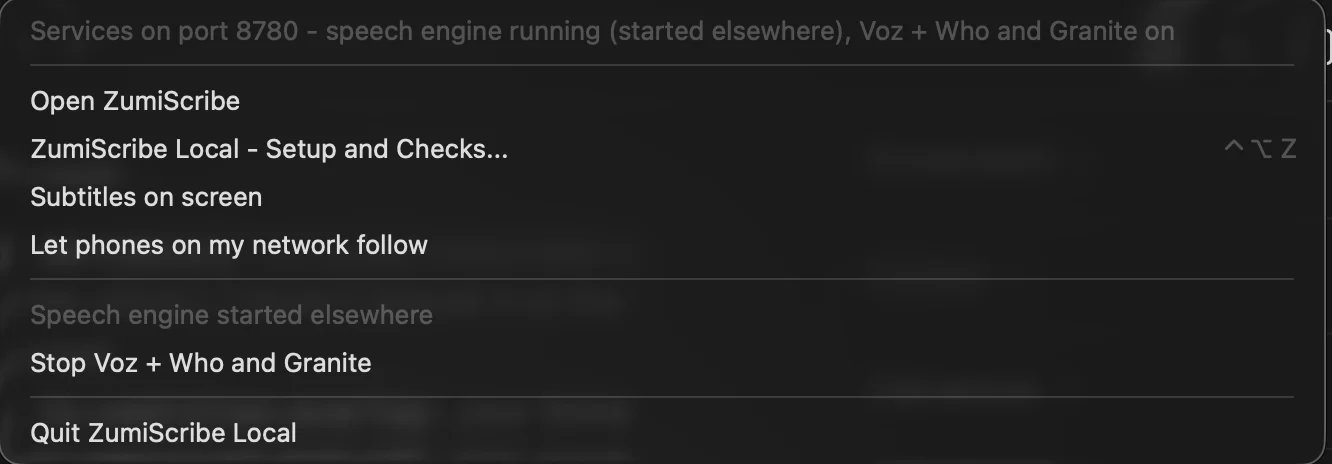
- There is no Dock icon: look for the ZumiScribe icon in the menu bar at the top right of the screen.
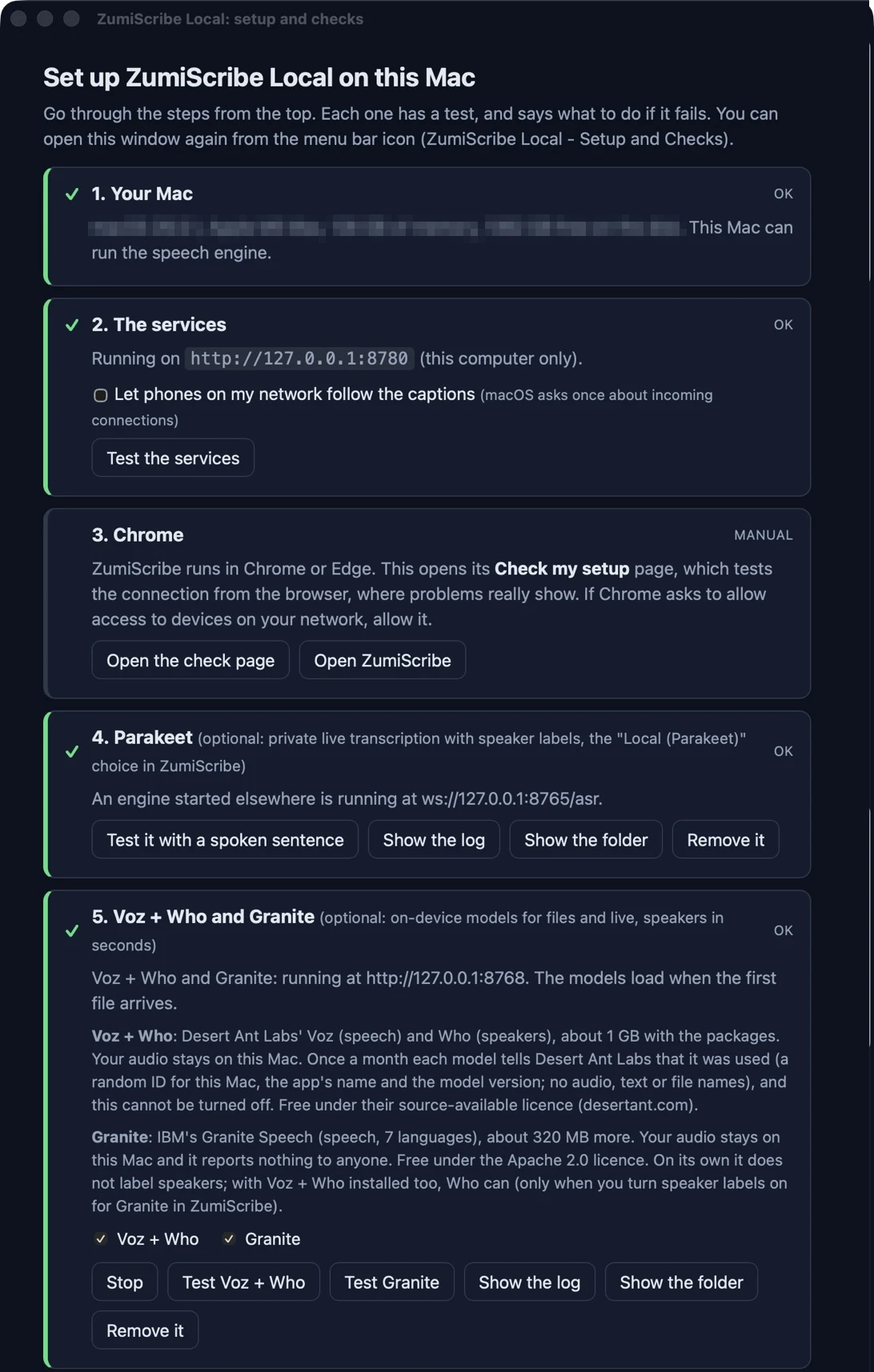
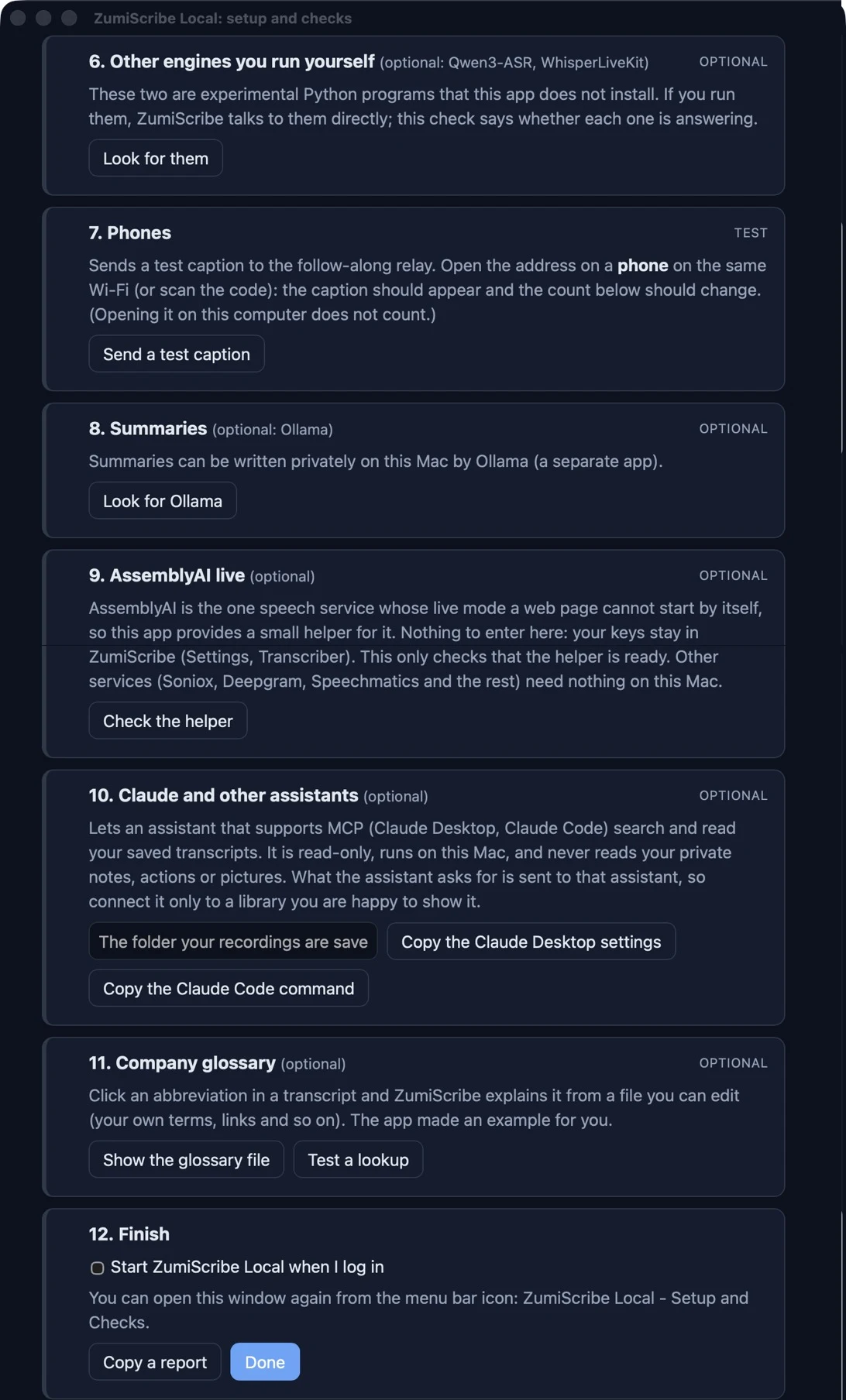
- The setup window opens by itself. Go through it from the top: each step has a test, and says what to do when it fails. (Open it again any time from the menu bar icon, Setup and checks..., or with the hot key Control+Option+Z, which works from any app.)
- Each time it starts, a small card at the top right says it is running and where its icon is, then goes by itself after a few seconds (click it to open the app).
- Step 3 opens Check my setup in your browser. If Chrome asks to allow access to devices on your network, choose Allow: that is how the web page talks to the app on your own Mac.
- If you want phones to follow along, tick Let phones on my network follow (macOS asks once about incoming connections), then try step 8 (Phones) with a phone on the same Wi-Fi.
- If you want private transcription, step 4 installs Parakeet, the speech engine. It downloads about 6 GB the first time (a quarter of an hour or more) and you can keep using the Mac meanwhile. It also tests the engine with a spoken sentence.
- Step 5 installs on-device models for transcribing recordings and recording live, one or both: Voz + Who (Desert Ant Labs' speech and speaker models, about 1 GB; once a month each model reports to Desert Ant Labs that it was used, no audio or text) and Granite (IBM's speech model, about 320 MB more; it reports nothing). A few minutes. Then choose "Voz + Who (on this Mac)" or "Granite (on this Mac)" in Settings, Transcriber. Either can be added later with Add.
- Step 7 only looks for Qwen3-ASR and WhisperLiveKit, two experimental engines you run yourself; it does not install them. In ZumiScribe, open Settings, Transcriber and choose Local (Parakeet) to use the engine. If the app says it is on a port other than 8780, set that port in Settings, Services.
What it keeps, and how to remove it
- Its files live in
~/Library/Application Support/ZumiScribe: the glossary file, the speech engine if you installed it (about 6 GB), and the on-device models if you installed them (in itsvozfolder: about 1 GB for Voz + Who, plus Who's 81 MB model in~/Library/Caches/desert-ant-models, and about 320 MB for Granite). Nothing else is stored, and it holds no recordings or transcripts of its own. - To remove it: quit it from the menu bar icon, delete ZumiScribe from Applications and, if you like, delete that folder. The setup window's steps 4 and 5 also have Remove it buttons for the engine and for the on-device models.
- It starts only when you open it, unless you tick Start ZumiScribe when I log in (the last step).
Build it yourself
- Install Rust from rustup.rs and Node from nodejs.org.
- In the
experiments/zumiscribe/overlayfolder runnpm installonce (it provides the build tool). The subtitles window's ScreenCaptureKit part needs Apple's developer tools:xcode-select --installif you do not have them. - In the
experiments/zumiscribe/local-appfolder run./package.sh. It makesdist/ZumiScribe-0.1.0-mac.zip. - Install it from that file:
ZUMISCRIBE_APP_URL="file://$PWD/dist/ZumiScribe-0.1.0-mac.zip" sh install.sh
On an Android phone (early test version)
ZumiScribe Local is a small Android app that lets ZumiScribe in the phone's browser transcribe with Parakeet on the phone itself, with speaker labels. Nothing leaves the phone: the browser records the microphone and hands the sound to the app on the same phone. It is a test version, installed from a file, and it needs a recent phone (a Pixel 6 or later, 6 GB of memory or more).
- On the phone, download ZumiScribe-Local.apk (version 0.8, about 27 MB) and open it. Android asks to allow installing from that source (your browser): allow it. It is a test version signed with a debug key, so Play Protect may ask you to confirm.
- Open ZumiScribe Local and press Download models (on Wi-Fi, about 680 MB, once). The Models screen lists what is installed and lets you delete any of it; the speaker labels are optional.
- On the Home screen, switch on Browser connection. A notification appears: keep it, it is what lets Android keep the engine running while the browser is in front. Allow notifications when asked.
- In the phone's browser, open ZumiScribe, then Settings, Transcriber, and choose Parakeet (on this phone). Its Ready column says Phone app running when the bridge is on.
The bridge answers only pages of ZumiScribe, only on the phone's own address (127.0.0.1), so another app or a web page from elsewhere cannot use it. Stop it with the notification's Stop button. Live transcription warms the phone and uses its battery: keep it charging for a long meeting. The Test screen checks how well your phone keeps up.
If something does not work
| What you see | What to do |
|---|---|
| Nothing in the menu bar | Open the app from Applications. If macOS blocked it, follow the Open Anyway steps above. |
| "Nothing answered" in Check my setup | The app is not running, or it is on another port: open its setup window and read step 2, then set the port in Settings, Services. |
| Phones cannot open the address | Tick Let phones on my network follow; the phone must be on the same Wi-Fi, and guest networks often block devices from reaching each other. |
| The engine install fails | The window shows the last line of output. Check the free disk space and the internet connection, then Try again: it carries on from what was already downloaded. |
| Something else | Press Copy a report in the app's setup window (or in Check my setup) and send it to whoever supports you: it contains test results and versions, and no keys or text. |
What happens to your data explains what leaves your computer in each mode.