Record live or transcribe later. Capture meetings, calls, presentations and recordings. Identify speakers, generate summaries and stay in control of your data.
Student at a lecture Free, and can stay on your device
Never miss what was said.
Listen now, learn from the whole lecture later. Photos of the board land beside the words said when you took them, and one document pulls the lot together for revision.
Photos from your phone sit on the moment they were taken, even if its clock was out
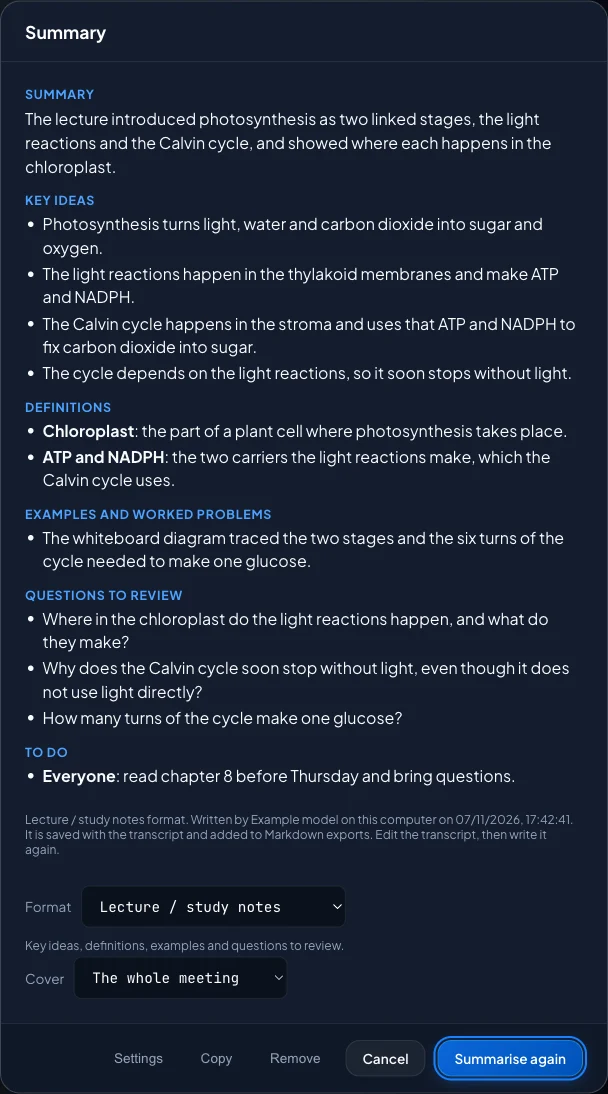
A study summary: key ideas, definitions, examples and questions to test yourself
Export a PDF or Word document with the pictures in place, and ask across a whole course
Who said what, the slide on screen when they said it, and nothing leaving your computer.
A narrated tour of the app, 1 minute 30 seconds, with captions. The voice is synthetic.
Works offline
No network, no problem.
Download a speech engine once, then unplug. ZumiScribe goes on recording and transcribing on your own computer: on a plane, in a basement meeting room, or anywhere the wifi cannot be trusted.
Download once. Voz + Who is about 450 MB and Granite about 320 MB, kept by your browser. After the first visit the page itself is kept too, so it opens with no connection.
Then everything runs on your device. Words appear as people speak, with no audio leaving the computer. Voices are labelled too: live with Granite or the ZumiScribe Local app, and afterwards with Voz + Who.
Summaries and translation can stay offline. Write summaries with Ollama or Chrome's built-in AI, and translate with a language you have already downloaded.
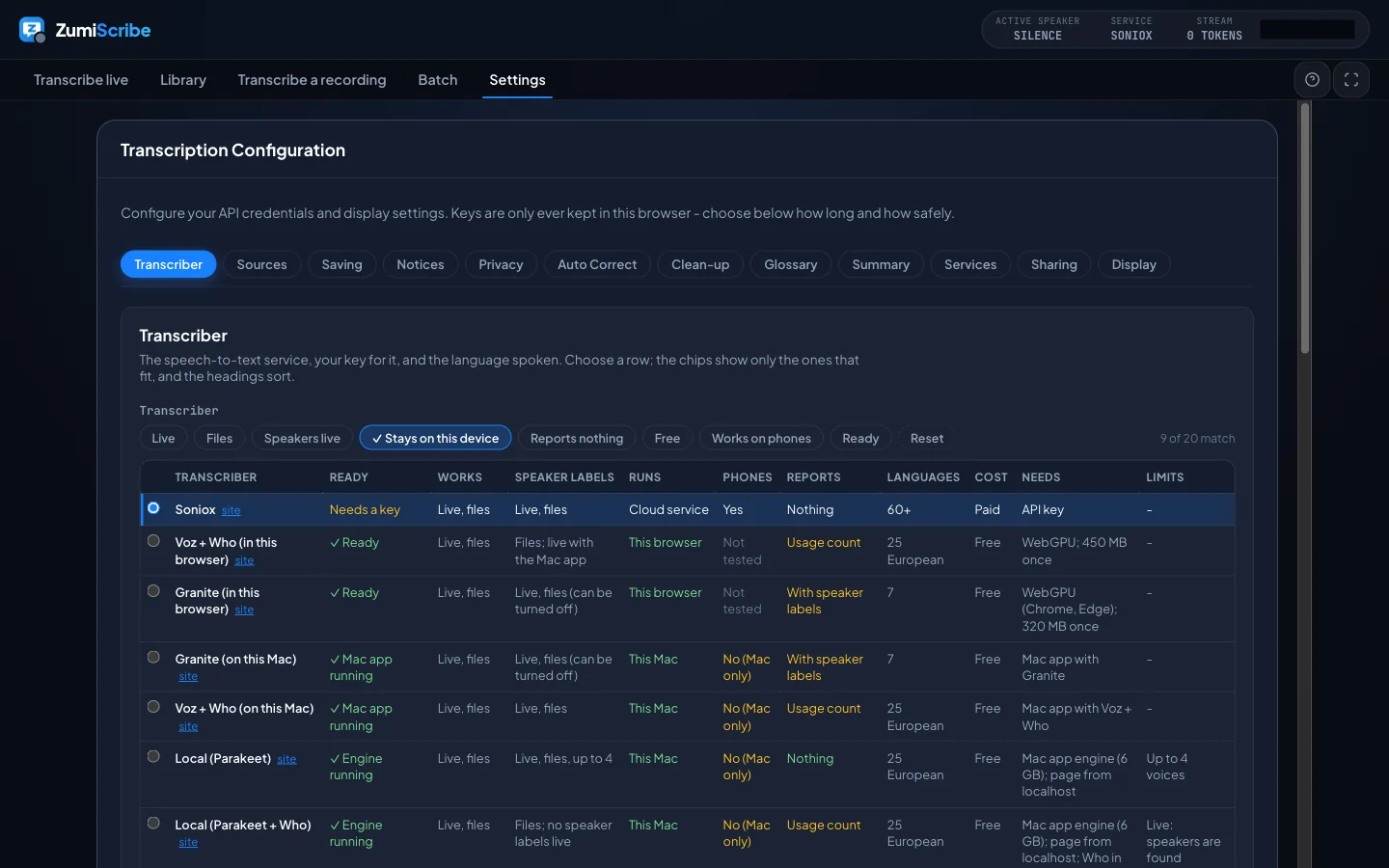
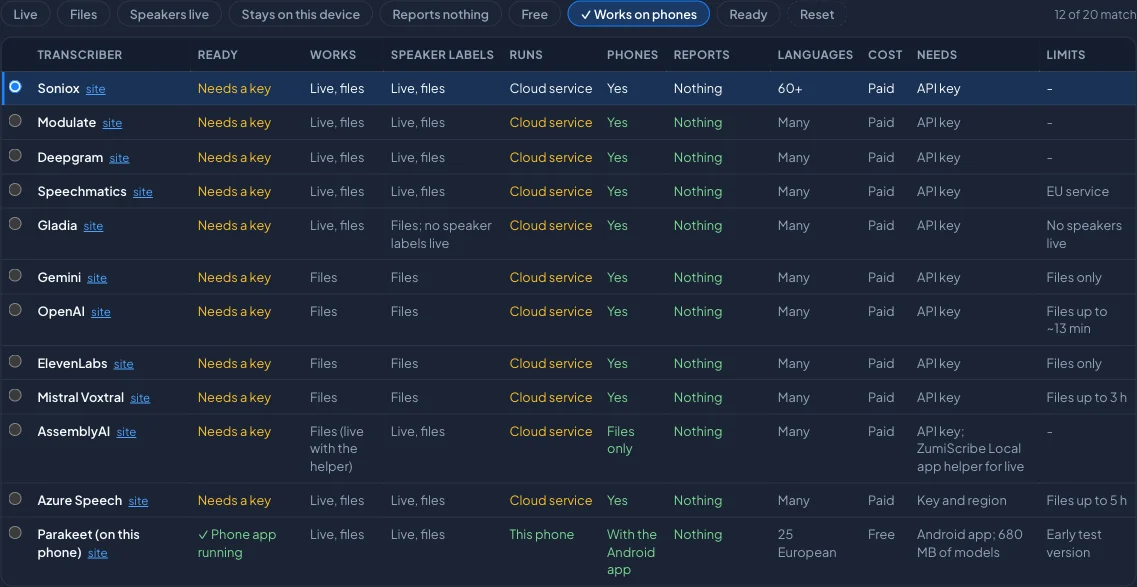
Cloud services need a connection. Settings shows which transcribers stay on your device and which do not, so you know before you leave the office.
More than a transcript
The things you will not find in most meeting tools.
You decide where your data goes.
Pick a speech engine on your own device and your audio never leaves it. Pick a cloud service and it goes to that company, directly, with your own key. Either way there is no ZumiScribe server in the middle, and your recordings are ordinary files in a folder you choose.
Every transcriber says where your audio goes. Filter to the ones that stay on this device.
Find the best transcriber for your audio.
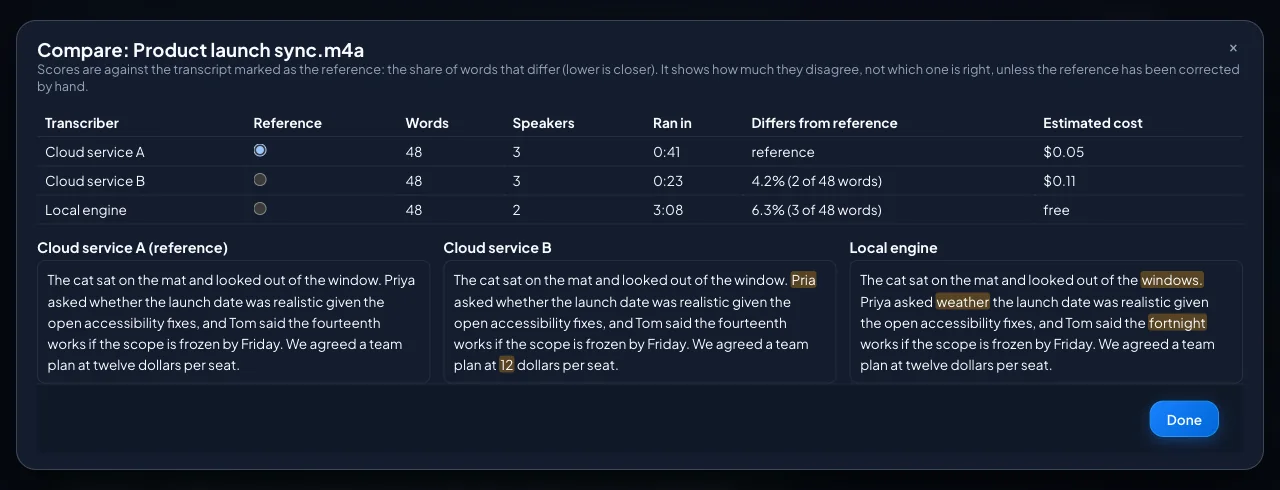
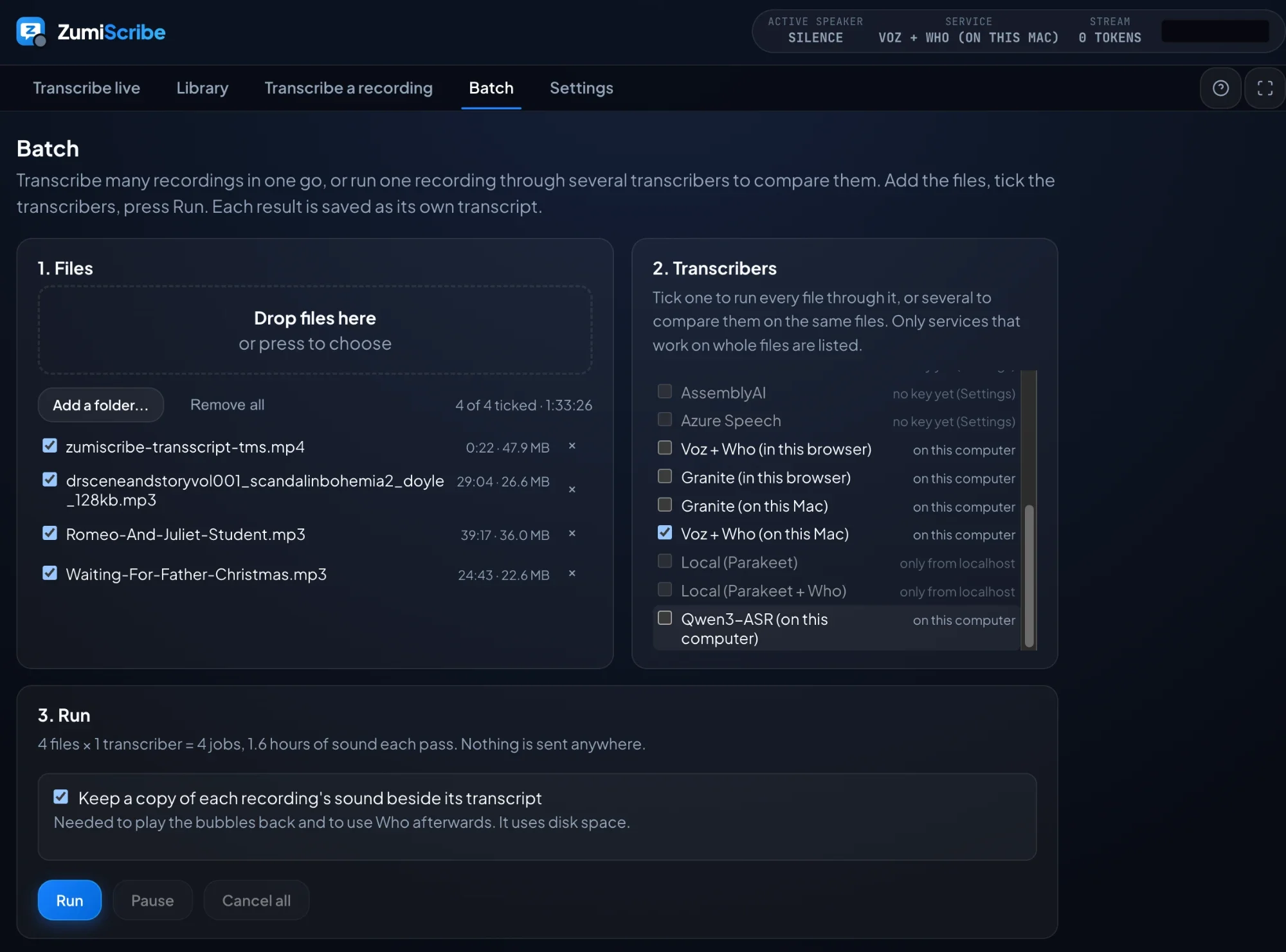
Run one recording through several transcribers, from eleven cloud services to engines on your own computer, and see where they disagree, with the time each took and an estimate of the cost. Or queue a whole folder of recordings and walk away.
One recording, three transcribers, the differences marked. (Example results.)Or queue a whole folder and walk away.
Pictures, in context.
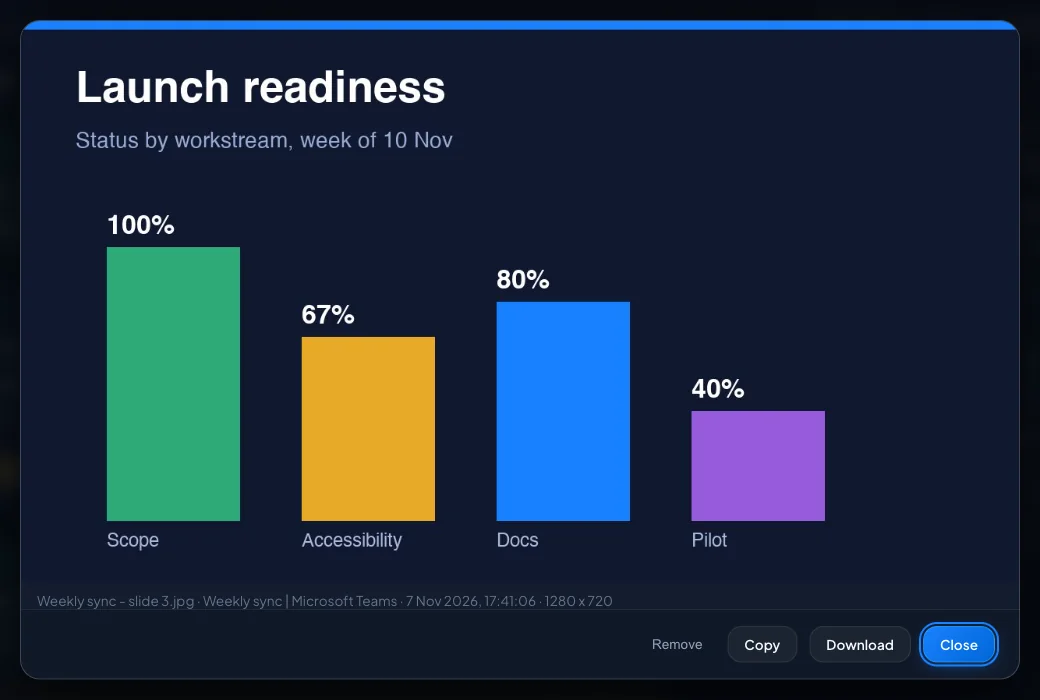
Slides are captured when the picture changes, and you choose the part of the screen to watch, so people, cameras and chat do not trigger a capture. Photos from your phone or camera land on the bubble being spoken when they were taken, even if the phone's clock was a few minutes out.
Photos and slides sit on the bubble being spoken.A captured slide, with where it came from.
Summaries you can trust with the room.
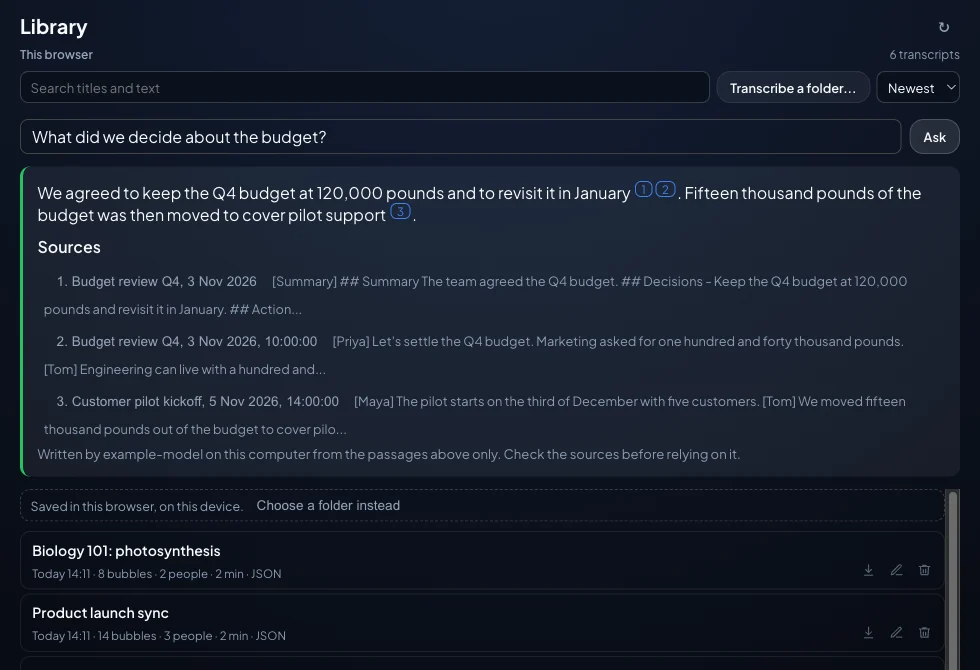
One button writes a summary, key points, decisions and action items, including the actions you noted along the way. Choose the shape: a one-to-one, an interview with verbatim quotes, a stand-up, a formal meeting with resolutions, or a follow-up email ready to send. By default the model runs on your own computer (Ollama or Chrome's built-in AI), so the words stay there. Then ask across everything you have saved, such as "what did we decide about the budget?", and get an answer with links back to the passages it came from.
General
1-on-1
Interview
Stand-up
Board meeting
Lecture notes
Follow-up email
Your own prompt
Ask across everything you saved, with the sources listed. (Example meetings.)A study summary of a lecture. (Example summary.)
One document, with the pictures where they belong.
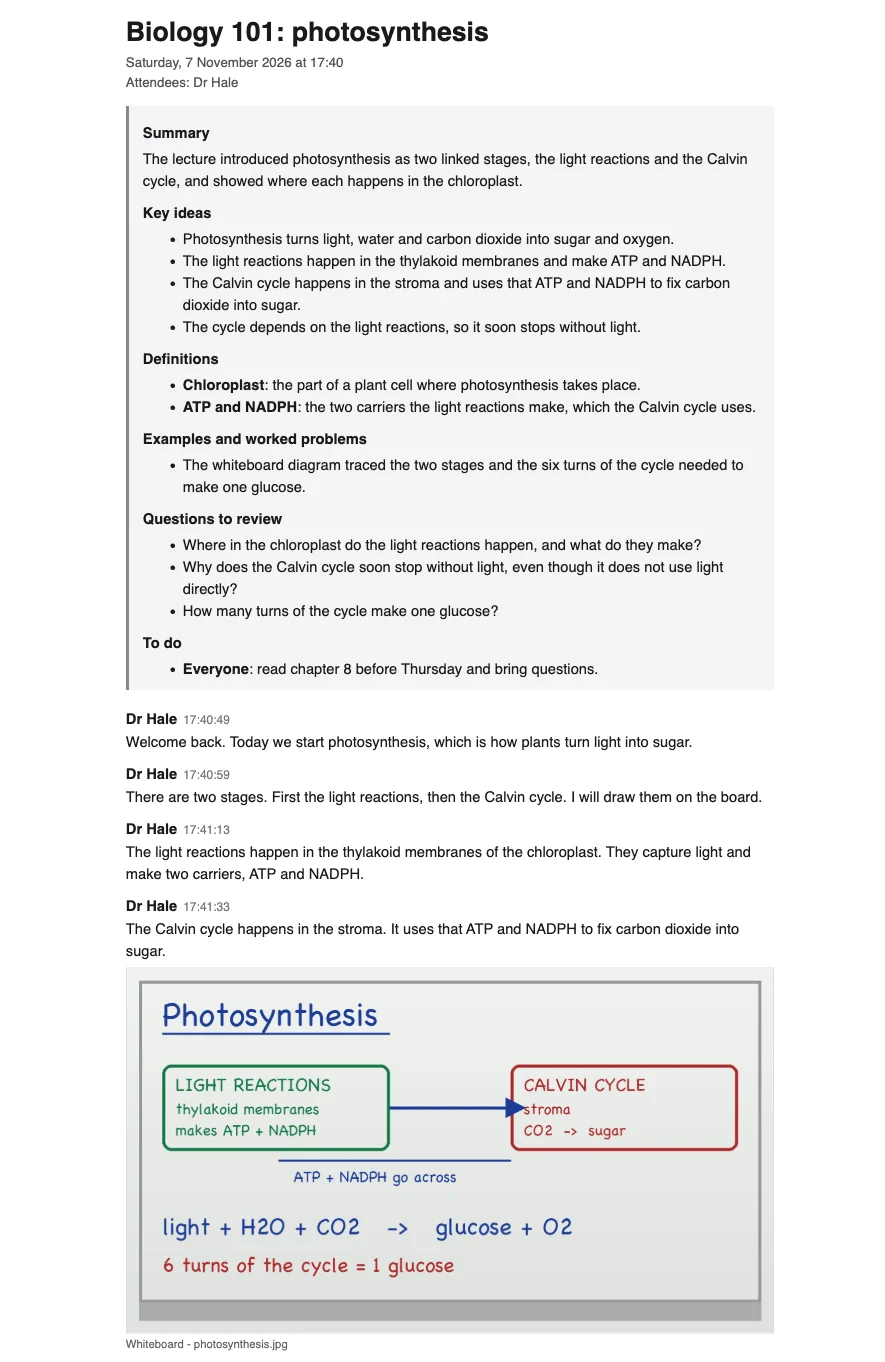
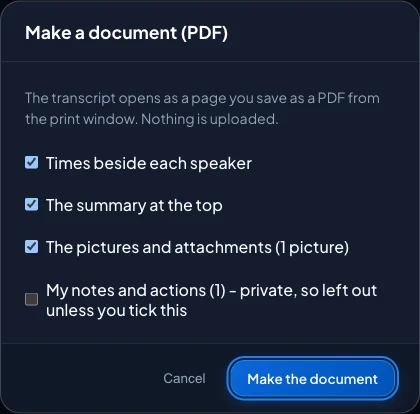
Export a PDF or Word document with the transcript, the summary and every photo or slide sitting under the words that were said when it appeared. Choose what goes in: times, summary, pictures, attachments, and, if you want them, your own notes and actions. It is built on your computer and nothing is uploaded. Share it with the team, or print it and revise from it.
Transcript
Summary
Photos and slides
Attachments
Your notes and actions
The document: summary first, then the words, with the photo where it belongs. (Example lecture.)You choose what goes in.
Built for the lecture hall.
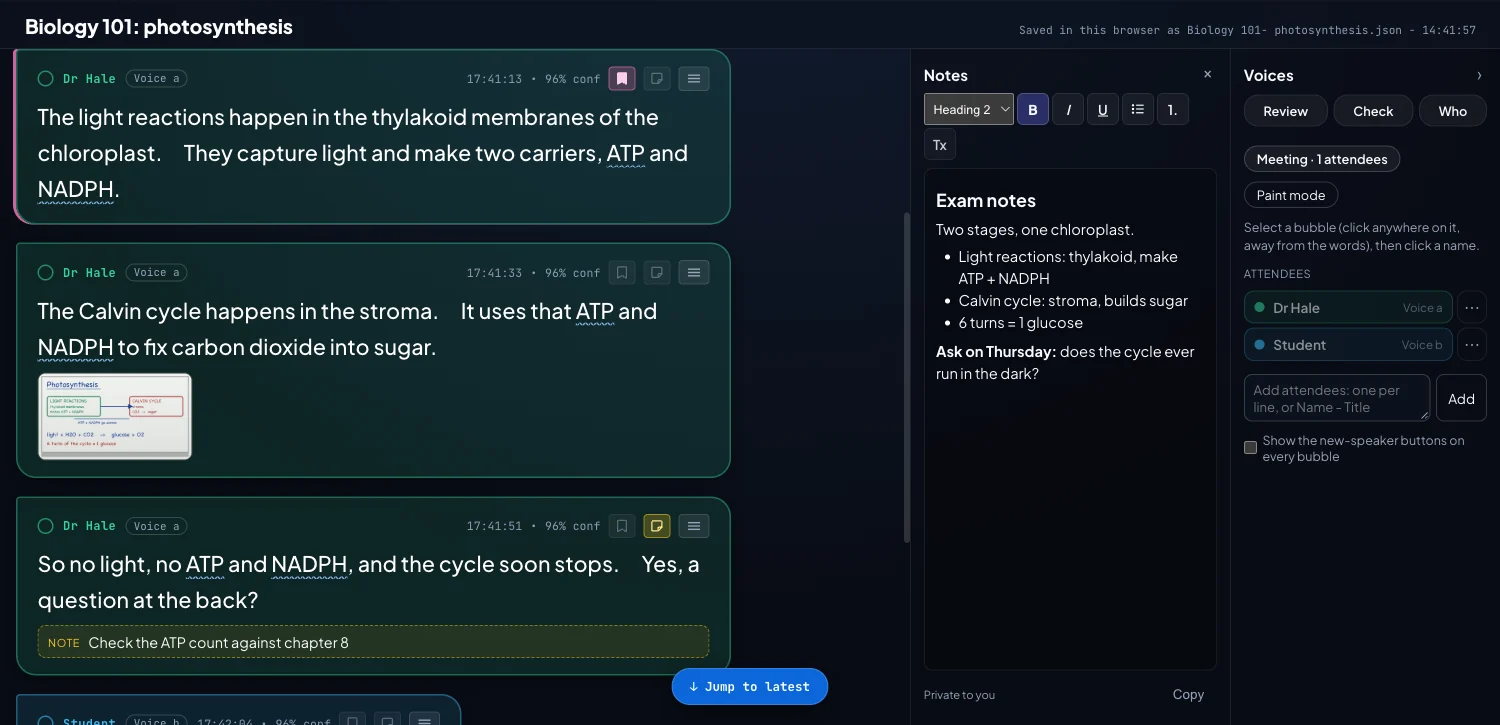
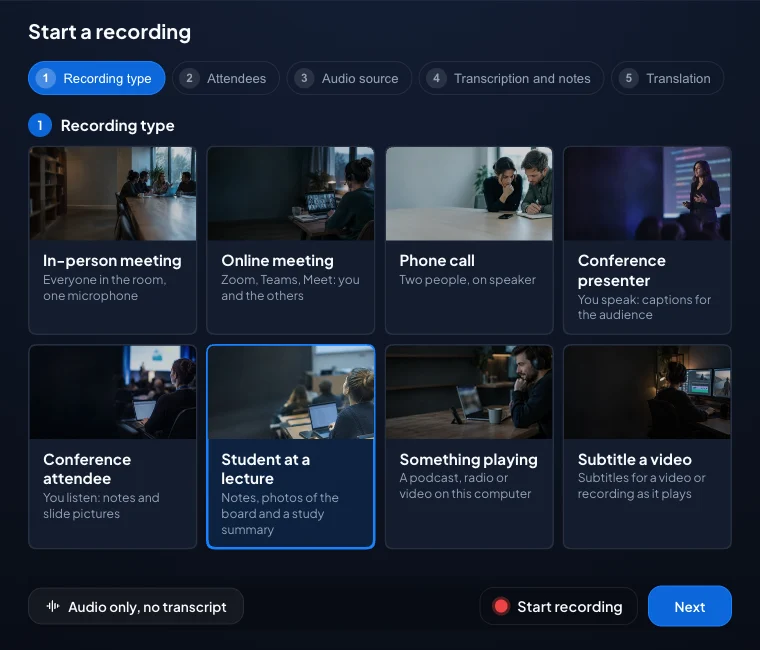
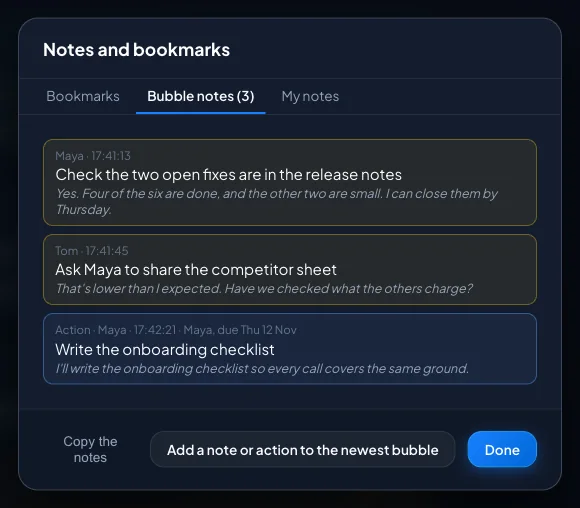
Choose "Student at a lecture" and ZumiScribe sets itself up for one speaker, with the sound kept so you can listen again. Take notes as it goes, and bookmark the moments to come back to. Snap the board on your phone and the photo lands on the right moment, even if the phone's clock was out. Afterwards, a study summary gives you the key ideas, definitions and worked examples, with questions to test yourself, and Ask your meetings works across the whole course. Please check that you are allowed to record before you start.
Free to use
Can stay on your device
Photos synced to the words
Study summary
Ask across a course
Captions and translation
Bookmarks, a note, the whiteboard photo and your own Notes panel. (Example lecture.)Choose Student at a lecture and it sets itself up.
Take it wherever it needs to go.
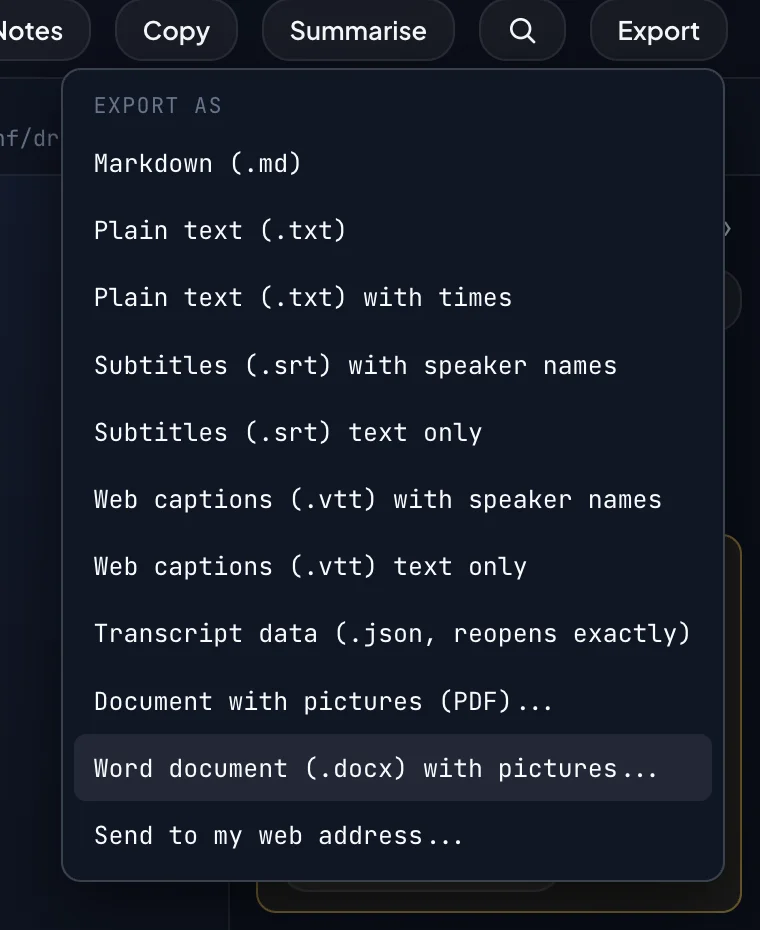
Export to Markdown with front matter that Obsidian and Logseq read as properties, plain text, subtitles (SRT and WebVTT) or JSON. Copy just the summary for an email or chat, or send the finished transcript to Slack, Teams, Zapier, Make or n8n when you stop recording. Your private notes stay out of every export, except a PDF or Word document where you choose to include them.
Markdown
Text
SRT
WebVTT
JSON
PDF
Word
Slack
Webhook
Every format, from one Export button.
A glossary that explains your jargon.
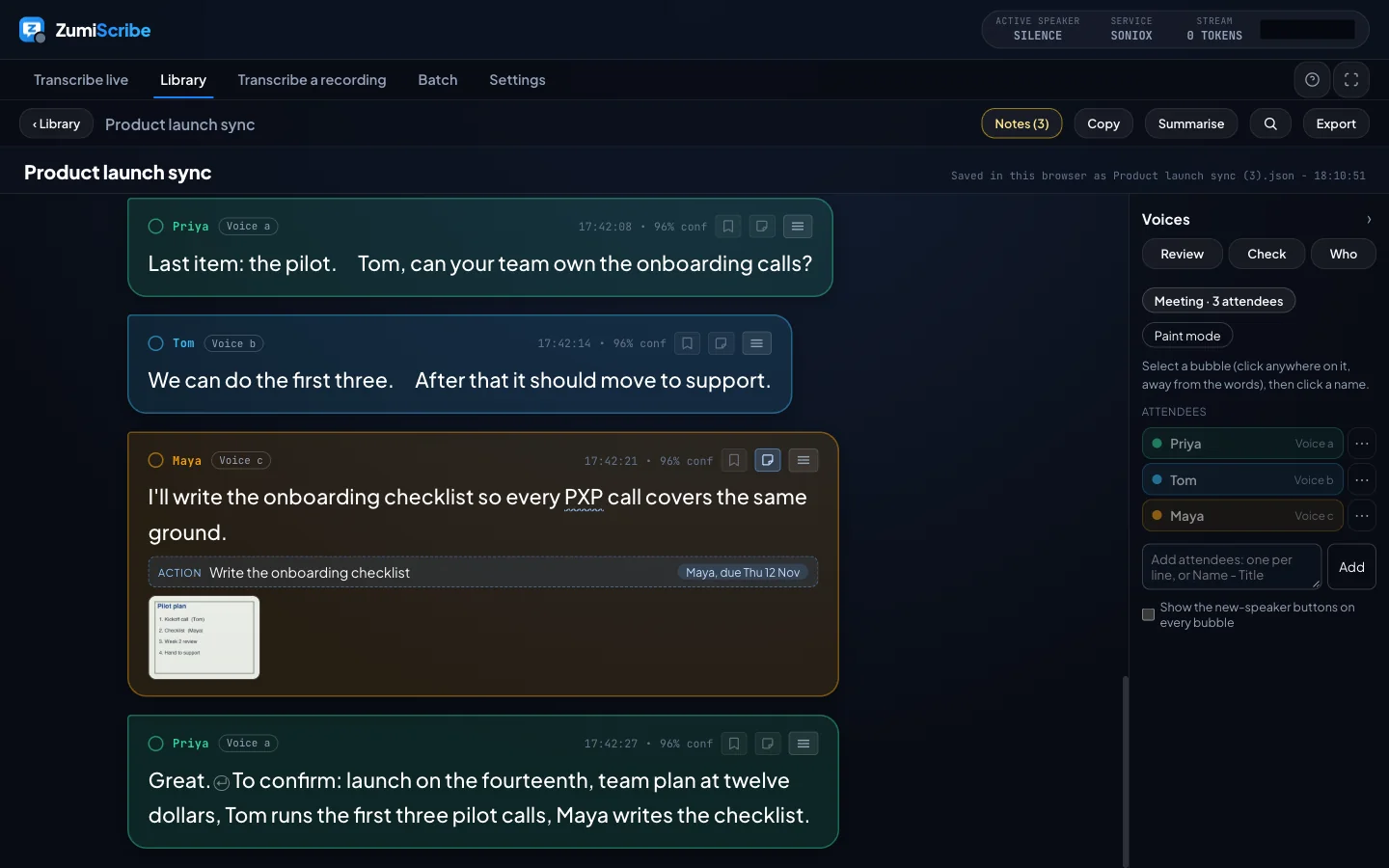
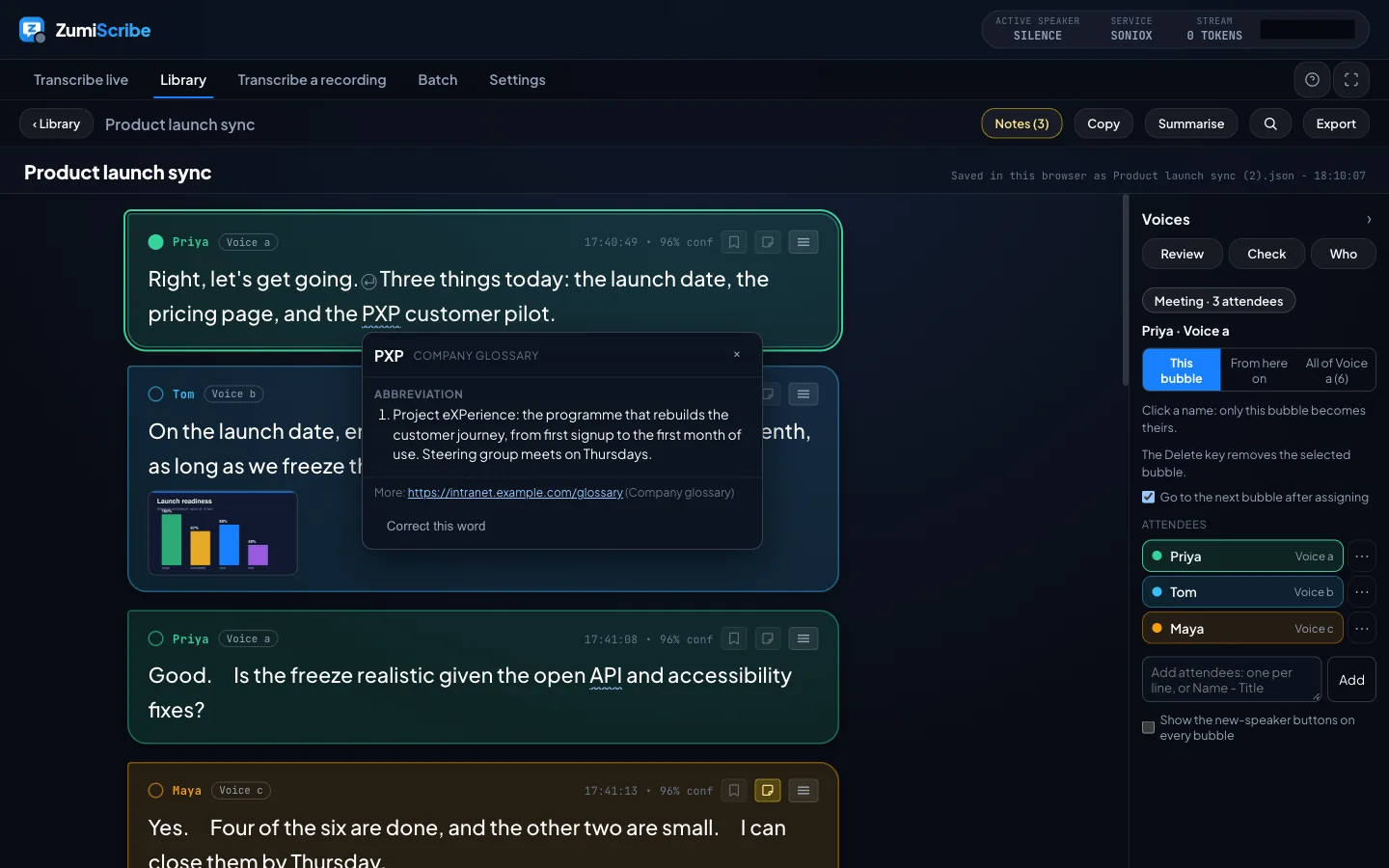
Abbreviations are underlined in the transcript. Click one to see what it means in your company's own glossary. Custom vocabulary teaches a tool how a word sounds; this explains what it means, and only the word you click is ever looked up.
Click an underlined abbreviation to see the company glossary definition. (Example glossary.)
Fix it while it is happening.
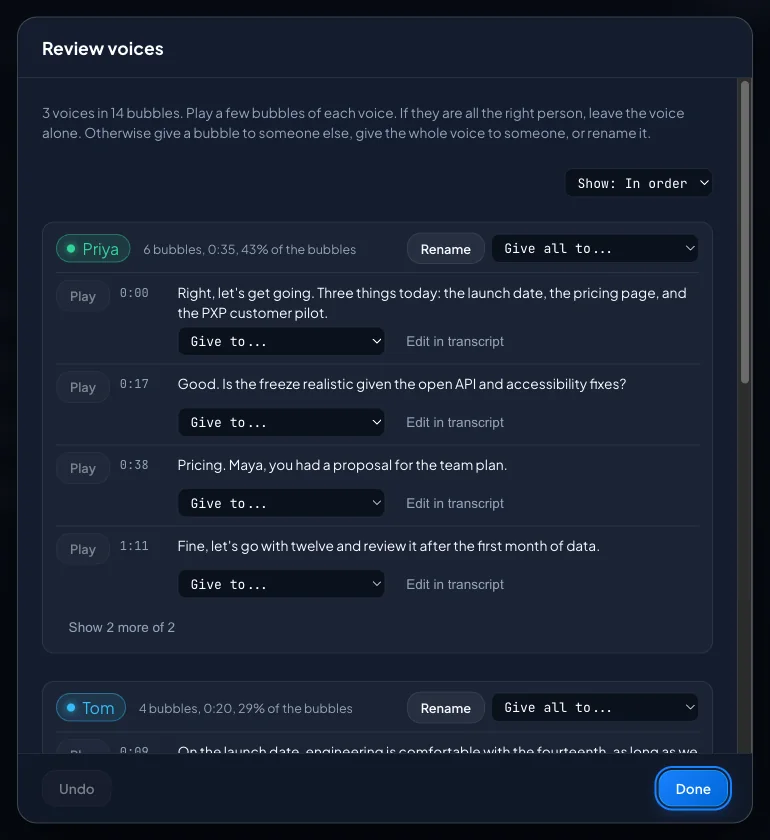
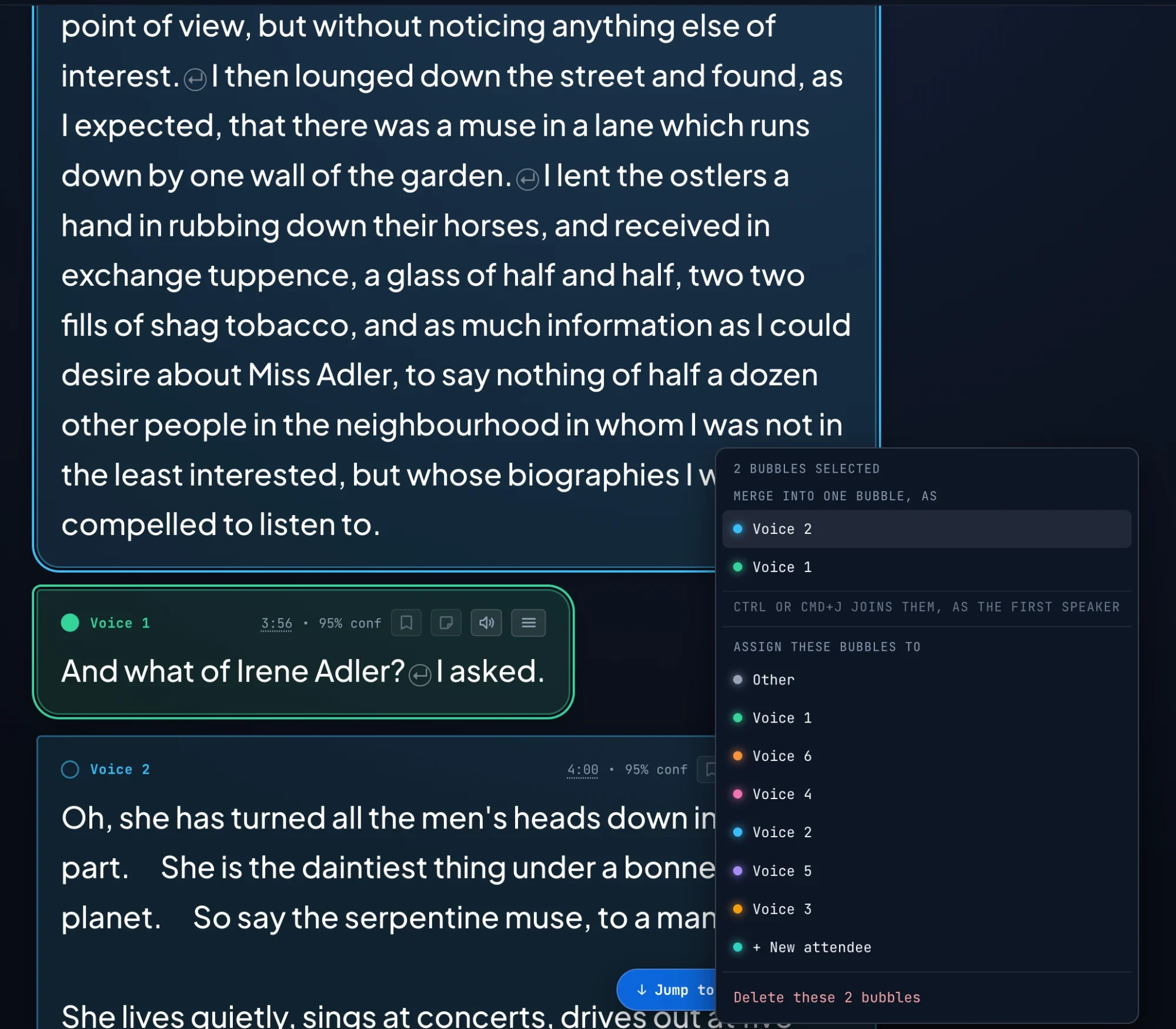
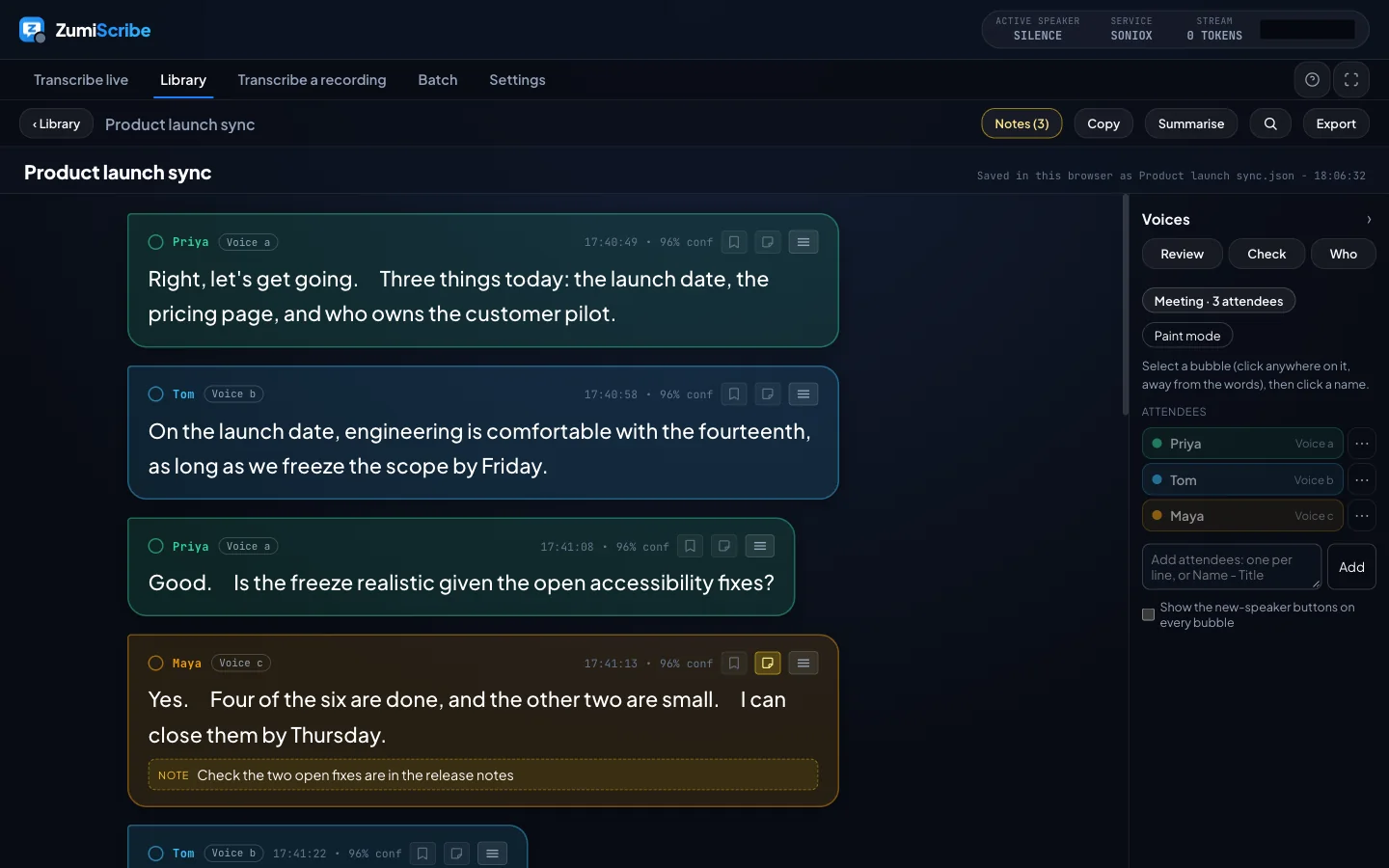
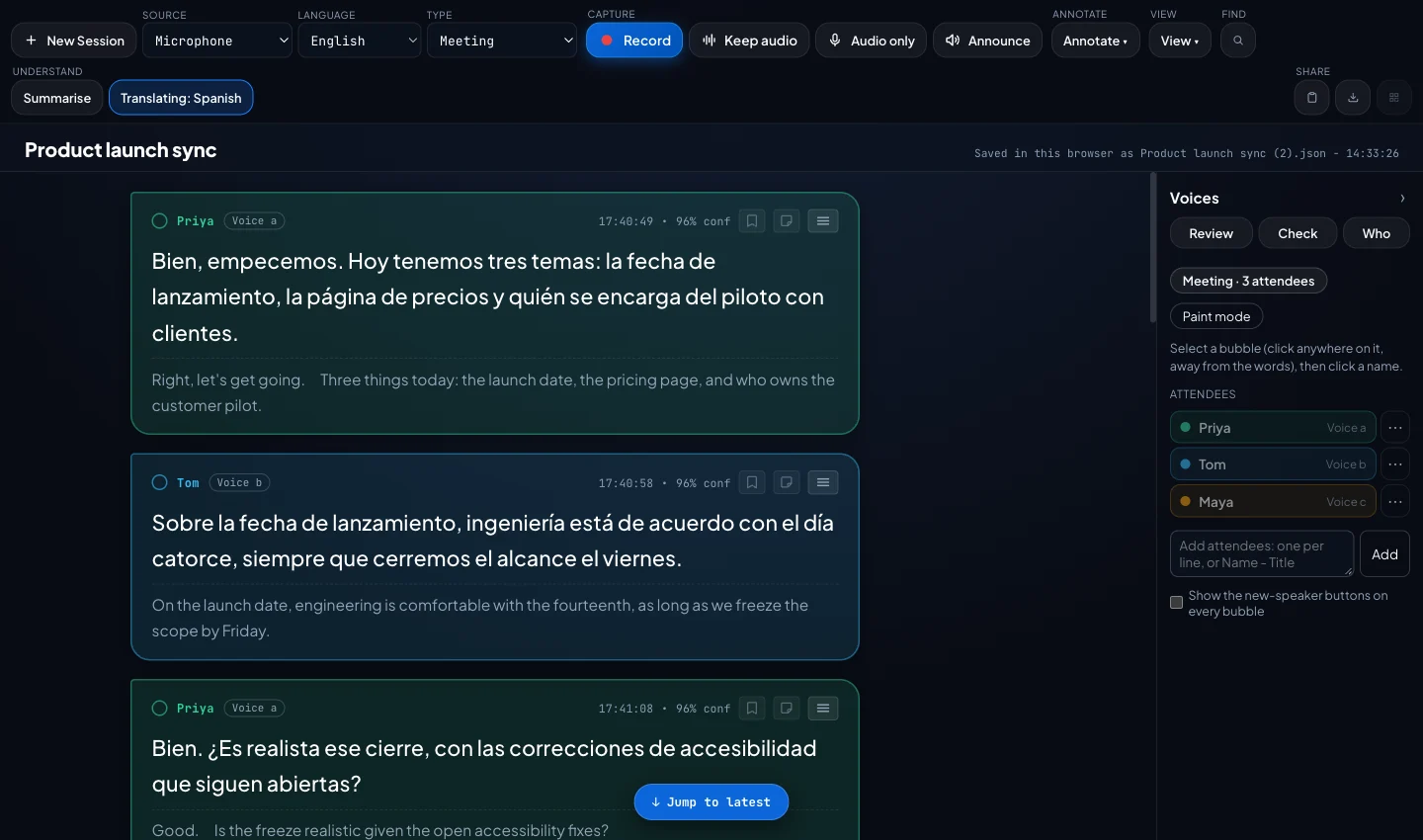
Click a word to correct it, give a sentence to someone else, split or merge bubbles, and play any bubble back. Afterwards, review each voice, check the likely mistakes, and let Who label the speakers from the sound.
Review each voice, play its bubbles, and give them to the right person.Select several bubbles, then right-click: merge, assign or delete. Ctrl or Cmd+J joins them.
Captions the whole room can read.
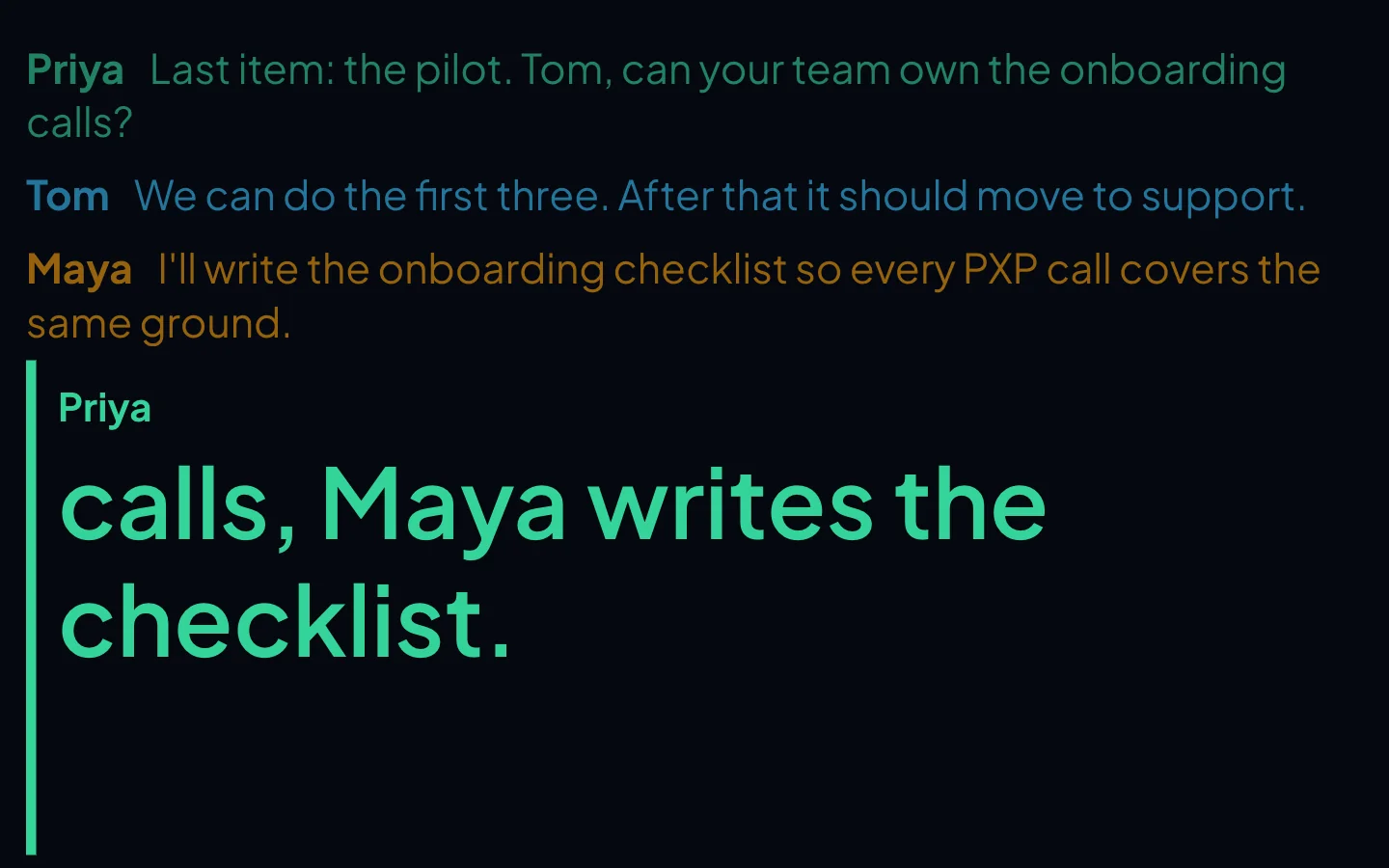
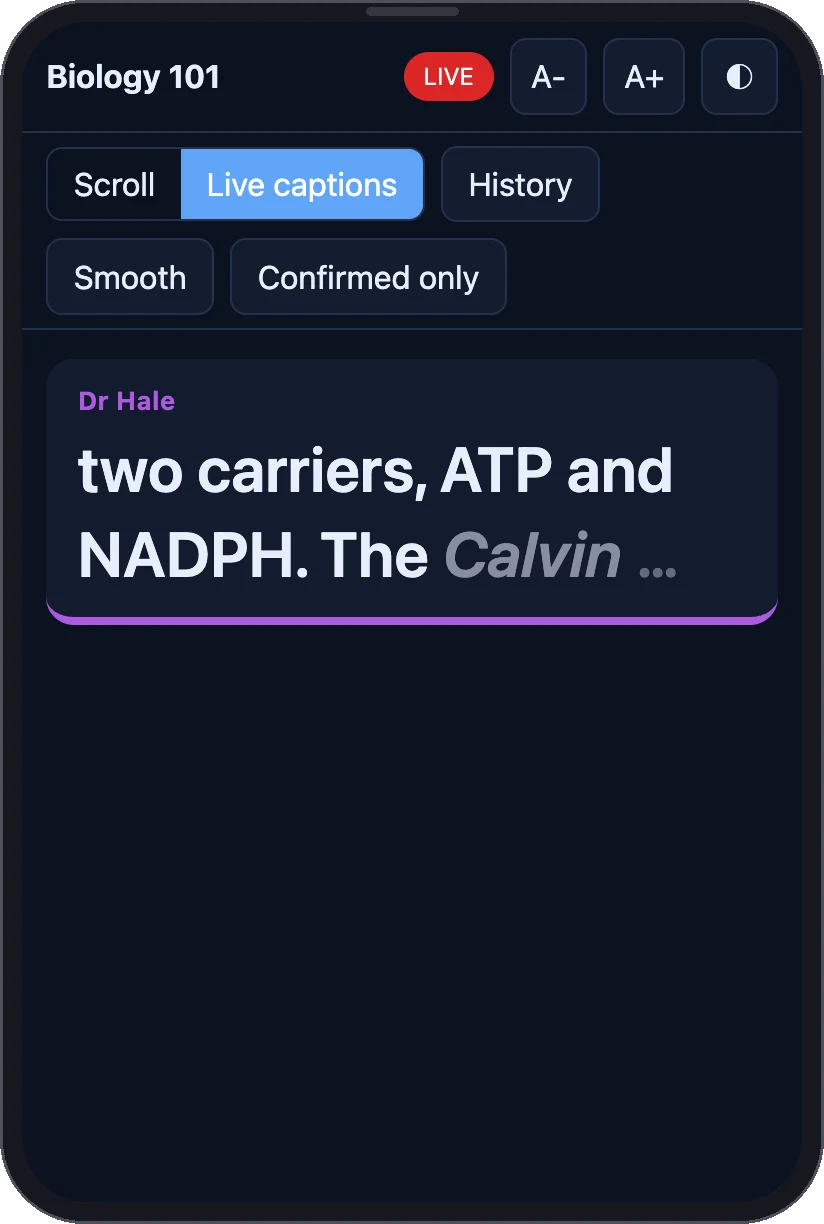
Switch to large captions for a big screen or a second monitor, with each speaker in their own colour. Share a link and people follow along on their own phones, with nothing to install.
Large, colour-coded captions, readable from the back of the room.Anyone can follow on their own phone, with nothing to install. (Example lecture.)
Subtitles on top of anything.
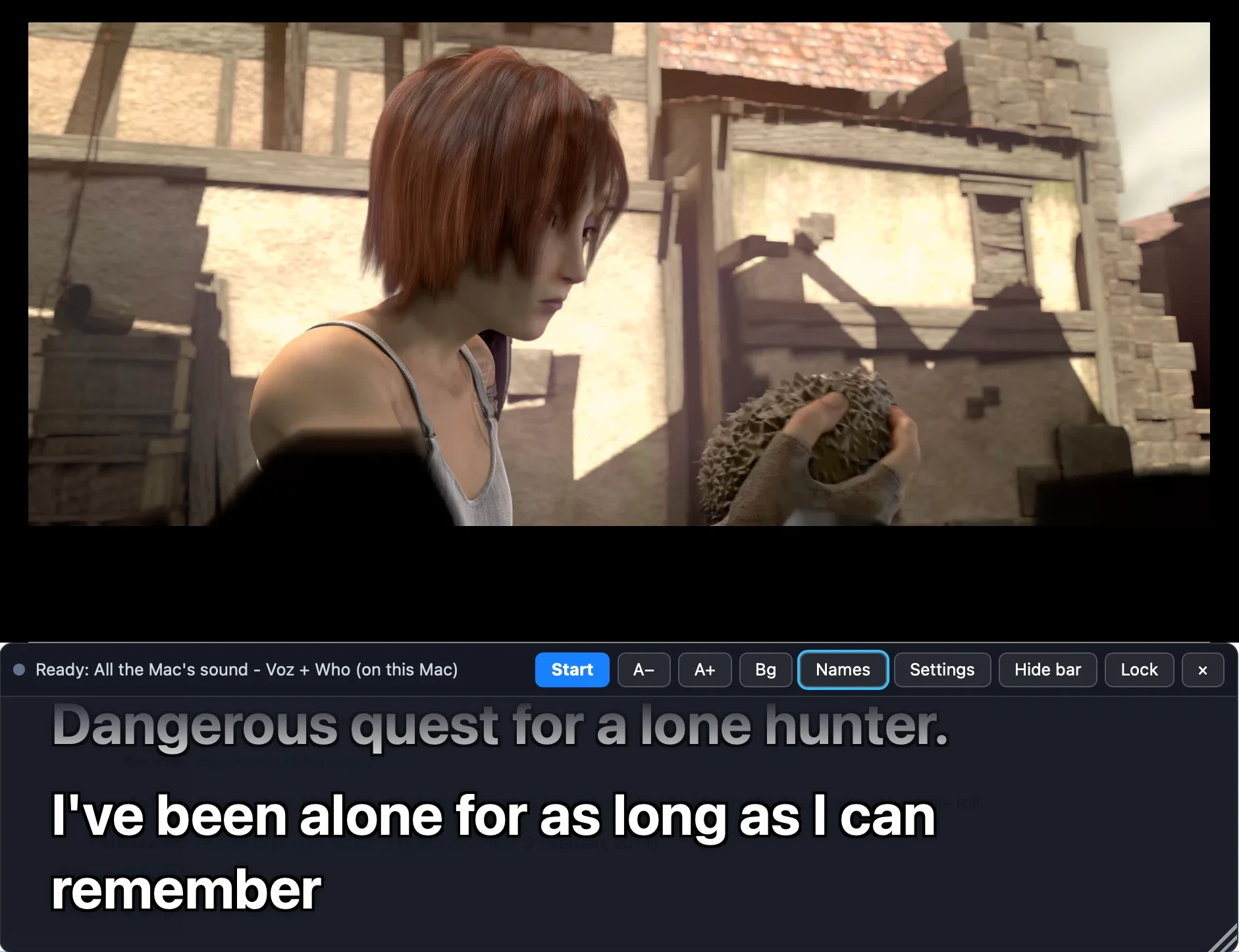
With the ZumiScribe Local app on a Mac, a see-through subtitles window floats over a film, a webinar or a call and captions whatever that app is playing, in large type you can read from across the room. It works offline with Voz + Who, so a video you have downloaded is captioned on a plane too.
Twenty transcribers behind one interface, a library that is just files in your folder, and tools for the awkward parts: wrong speaker labels, long recordings, no signal.
Choose your speech engine
Eleven cloud services with your own key (most have a free trial), or models that run on your own computer. Change your mind any time.
Fix the speakers
A Voices panel, a dialog that plays a few bubbles of each voice, a check that finds probable mistakes, and Who, which labels speakers from the sound.
Batch and compare
Queue a folder of recordings, or run one through several transcribers and see how much they disagree.
Audio only
Capture the sound when there is no signal or no credit, and transcribe it later, one file or a folder.
Notes that stay yours
A rich-text Notes panel for the whole recording, notes and bookmarks on bubbles, pictures and files. All private.
Summaries and questions
A summary, key points, decisions and action items from a model on your own computer, and Ask your meetings across everything you saved.
Captions for an audience
Large captions in the speaker's colour, followed on phones with a link, and translated on your computer.
Search, replace, clean up
Search by pattern, replace in bulk, auto-corrections, a glossary for abbreviations, and optional filler-word and swear-word clean-up.