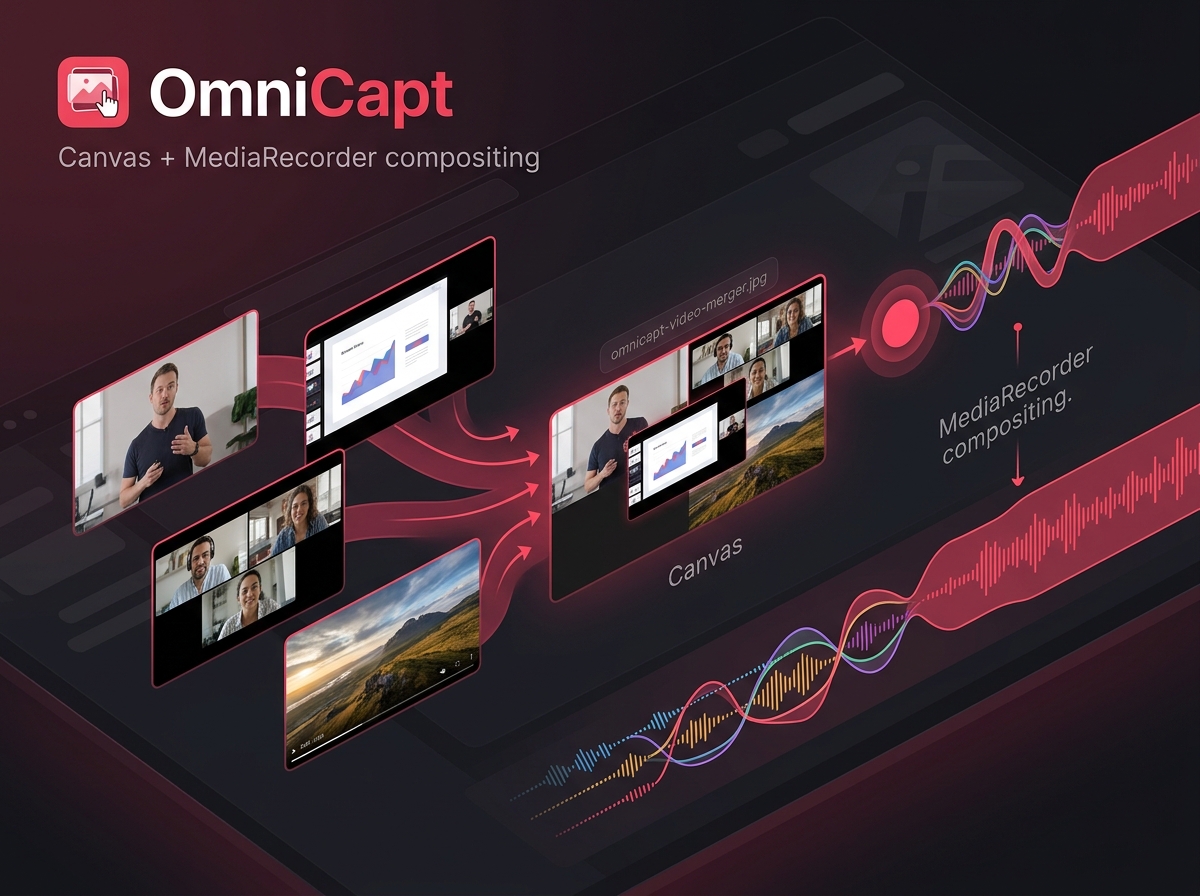
Video editing has historically been a desktop-bound workflow. Trimming screen captures, stitching walkthrough clips, or placing recordings side-by-side generally requires moving files to software like Adobe Premiere, Camtasia, or using cloud-based upload tools. For developers sharing bug reproductions or feature updates, these transitions add friction and compromise confidentiality.
When implementing tab and screen recording in OmniCapt, we wanted to eliminate this boundary. The result is OmniCapt's Video Merger utility: a browser-native interface that lays out multiple recordings side-by-side and re-records them into a single clip - entirely inside Google Chrome, with no server, no FFmpeg, and no WebAssembly. The trick is to treat the browser itself as the compositor.
Technical Deep Dive Core Points
- Canvas compositing: Drawing several playing videos into one
<canvas>each animation frame. - Stream capture: Turning that canvas into a live
MediaStreamwithcaptureStream(). - Audio mixing: Merging every source's audio through the Web Audio API.
- Real-time recording: Encoding the combined stream to WebM with
MediaRecorder- no transcoding step.
Part of the engineering behind OmniCapt.
Why Not FFmpeg?
The obvious approach to merging video in a browser is to compile FFmpeg to WebAssembly and shell out to concat or hstack filters. It works, but it means shipping a multi-megabyte Wasm binary, decoding every frame, re-encoding it, and paying that CPU cost twice. For OmniCapt's use case - laying recordings out visually and producing one shareable file - there is a lighter path that Chrome already gives us for free.
Instead of transcoding files, OmniCapt plays the source videos into hidden <video> elements, paints them onto a single canvas frame-by-frame, and records the canvas as it plays. The browser's own media pipeline does all the decoding and encoding; we only decide what each frame looks like.
Compositing Layouts on a Canvas
Each source clip is loaded into one of up to four pre-created <video> elements. A layout template decides how they are arranged - side-by-side columns, stacked rows, or picture-in-picture - and draws them into a 2D canvas context. Here is the column layout that powers the side-by-side and multi-pane templates, complete with title strips and gap dividers:
const ctx = canvas.getContext('2d');

// Draw N videos in equal-height columns with gaps between them.
function drawColumns(videos, titles, gap) {
  const ch = canvas.height;
  let x = 0;
  videos.forEach((v, i) => {
    drawTitleStrip(x, 0, v.videoWidth, titles[i] || '');
    ctx.fillStyle = '#000';
    ctx.fillRect(x, TITLE_H, v.videoWidth, ch - TITLE_H);
    const y = TITLE_H + Math.round((ch - TITLE_H - v.videoHeight) / 2);
    ctx.drawImage(v, x, y);              // the current frame of a playing video
    if (i < videos.length - 1 && gap > 0) {
      ctx.fillStyle = GAP_COLOR;
      ctx.fillRect(x + v.videoWidth, 0, gap, ch);
    }
    x += v.videoWidth + gap;
  });
}
Because drawImage paints whatever frame the video currently shows, calling this on every animation frame produces a live composite of all the clips playing in sync.
Capturing the Canvas and Mixing Audio
A canvas can expose its pixels as a real-time video track via captureStream(). Audio is handled separately: OmniCapt routes every source video through a Web Audio graph, mixing them into a single destination node, then combines the canvas video track and the mixed audio track into one MediaStream:
// Mix all source audio into one destination
const audioCtx = new AudioContext();
const dest = audioCtx.createMediaStreamDestination();
videos.forEach((v) => {
  audioCtx.createMediaElementSource(v).connect(dest);
  v.muted = false;
});

// One stream = canvas pixels + mixed audio
const combinedStream = new MediaStream([
  ...canvas.captureStream(30).getVideoTracks(),
  ...dest.stream.getAudioTracks(),
]);
Recording in Real Time
The combined stream feeds straight into a MediaRecorder, which encodes to VP9/WebM as the videos play. A requestAnimationFrame loop repaints the canvas each frame and stops the recorder once every source has finished. When recording ends, the chunks are assembled into a Blob and handed to the downloads API:
const recordedChunks = [];
const mediaRecorder = new MediaRecorder(combinedStream, {
  mimeType: 'video/webm; codecs=vp9',
});
mediaRecorder.ondataavailable = (e) => {
  if (e.data.size > 0) recordedChunks.push(e.data);
};
mediaRecorder.onstop = () => {
  const blob = new Blob(recordedChunks, { type: 'video/webm' });
  chrome.downloads.download({ url: URL.createObjectURL(blob), filename: 'merged-video.webm', saveAs: true });
  audioCtx.close();
};

mediaRecorder.start();
videos.forEach((v) => v.play());

function drawFrame() {
  if (videos.every((v) => v.paused)) {
    if (mediaRecorder.state !== 'inactive') mediaRecorder.stop();
    return;
  }
  template.draw(videos, titles, gap);   // e.g. drawColumns
  requestAnimationFrame(drawFrame);
}
drawFrame();
Because the recording happens in real time, a 30-second merge takes roughly 30 seconds - the trade-off for avoiding a heavyweight transcoding engine. In exchange, the entire pipeline is a few hundred lines of vanilla JavaScript with zero binary dependencies.
Conclusion: Local Video Pipeline
By compositing on a canvas, capturing it as a stream, and encoding with the browser's own MediaRecorder, OmniCapt merges and lays out screen recordings natively - no FFmpeg, no Wasm, no backend. The videos never leave the user's machine, and the whole utility ships as ordinary extension JavaScript.