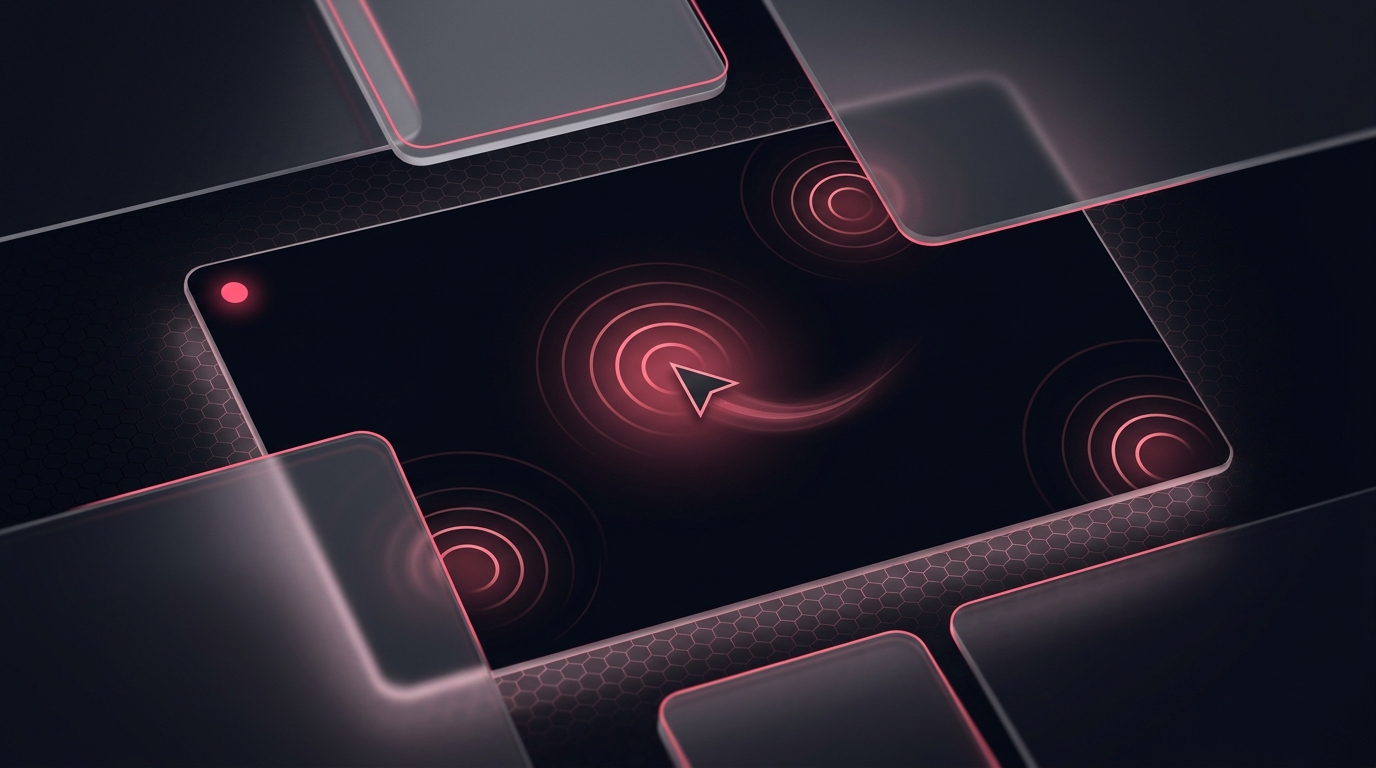
Watch a silent screen recording of someone reproducing a bug and you'll spend half of it hunting for the cursor. Where did they click? Did that button actually get pressed? A visible click highlight answers both instantly, and it's the difference between a repro that lands and one that gets bounced back with “can't reproduce.”
OmniCapt draws an animated highlight layer on top of the recorded surface, synced to real pointer events. The recording captures the composite - content plus highlights - so the annotations are baked into the video, not a separate overlay the viewer has to install anything to see.
Key Technical Concepts Covered
- Pointer capture: listen for real clicks and their coordinates.
- Ripple animation: expanding, fading circles rendered on a canvas.
- Compositing: the highlight canvas rides along in the recorded stream.
- Self-cleaning: ripples remove themselves when their life ends.
Part of the engineering behind OmniCapt.
Capturing the Click
A capture-phase pointerdown listener records where each click happened and pushes a short-lived ripple into an array. Using the capture phase means the highlight fires even if the page stops propagation:
const ripples = [];

document.addEventListener('pointerdown', (e) => {
  ripples.push({ x: e.clientX, y: e.clientY, start: performance.now() });
}, true);   // capture phase - fire before the page can swallow it
Rendering the Ripple
On each animation frame the highlight canvas is cleared and every live ripple is drawn as an expanding, fading circle. A ripple's radius grows with its age and its alpha falls to zero over a fixed lifetime, after which it is dropped:
const LIFE = 600;   // ms

// Paints the live ripples for the current time and prunes dead ones. It does
// NOT clear the surface - the compositing loop below repaints the video frame
// every tick, so there is nothing to clear.
function drawRipples(ctx, now) {
  for (let i = ripples.length - 1; i >= 0; i--) {
    const age = now - ripples[i].start;
    if (age > LIFE) { ripples.splice(i, 1); continue; }
    const t = age / LIFE;
    ctx.beginPath();
    ctx.arc(ripples[i].x, ripples[i].y, 8 + t * 32, 0, Math.PI * 2);
    ctx.strokeStyle = `rgba(244, 63, 94, ${1 - t})`;
    ctx.lineWidth = 3;
    ctx.stroke();
  }
}
Compositing Into the Recording
Here is the step a naive version skips. Capturing the highlight canvas alone would record ripples on a transparent background - not the page. OmniCapt draws both layers onto a single output canvas every frame - the captured screen frame first, the ripples on top - and records that canvas. It is the same single-surface compositing the video merger uses:
// `source` is the tab/screen capture: a <video> playing a
// getDisplayMedia() stream. We paint it, then the ripples, onto one canvas.
const out = document.createElement('canvas');
out.width = source.videoWidth;
out.height = source.videoHeight;
const octx = out.getContext('2d');

function composite(now) {
  octx.drawImage(source, 0, 0);   // 1. the captured page/screen frame
  drawRipples(octx, now);         // 2. the click highlights, on top
  requestAnimationFrame(composite);
}
requestAnimationFrame(composite);

// Record the *composited* surface, not the highlight layer alone.
const recorder = new MediaRecorder(out.captureStream(30), {
  mimeType: 'video/webm; codecs=vp9',
});
recorder.start();
Because both draws land on the same canvas before captureStream(), the encoded video contains the page and the highlights together - there is no separate overlay for the viewer to reconstruct.
Conclusion: Make Intent Visible
A few pointer listeners and a self-cleaning ripple animation turn a flat screen recording into one that communicates intent. Capturing on the capture phase, animating the ripples, and recording a single composited canvas gives OmniCapt click highlights that survive into the final video - no player plugin required.