What this article covers
- Captions have a recording-shaped reputation
- What the accessibility guidelines already say
- Who reads along
- The live benefits people underestimate
- The first thing we got wrong: text that will not sit still
- The second thing: lines that move while you read them
- Making captions readable from where people actually sit
- Captions on your own screen, not the presenter's
- Search, bookmarks and translation while it is happening
- Limitations
- What I would tell someone building the same thing
Part 1 of 7 in the Building ZumiScribe series. Try ZumiScribe, free in your browser.
Captions have a recording-shaped reputation
Ask someone where captions belong and they will usually point at something already finished: a film, a YouTube video, a podcast with a transcript underneath. That is where most of us meet them, and where the tooling is most mature.
Live speech gets less attention, which is odd, because live is where you have the least control. A recording can be paused and rewound. A meeting cannot. A lecturer does not stop because you missed a word, and a presenter on a call does not repeat the sentence that broke up when your connection stuttered. If you did not catch it, it is gone, unless something wrote it down as it was said.
That is the gap live captions fill. They are not a nicer version of recorded subtitles. They do a different job.
What the accessibility guidelines already say
This is not a new idea. The Web Content Accessibility Guidelines (WCAG), published by the W3C, have a success criterion specifically for it: 1.2.4 Captions (Live), at level AA. It asks that captions are provided for all live audio content in synchronised media, which in practice means things like a live webcast or a streamed presentation with sound and video together.
I want to be careful not to stretch that. WCAG is a standard for web content, and 1.2.4 is about live synchronised media, not about every conversation in a meeting room. But it does settle one question: captions for live speech are a recognised accessibility measure, written into the guidelines that many organisations already aim to meet. They are not an extra.
Who reads along
The first group is obvious and the most important: people who are deaf or hard of hearing. For them, live captions can be the difference between taking part in a conversation and reading the minutes afterwards.
But the people who use captions are a much wider group than that, and many of them would not describe themselves as needing an accessibility feature at all.
- People who find it harder to follow speech in real time. Some people, including some with ADHD or auditory processing differences, say that reading along helps them follow what is being said, especially in long sessions or when several people talk in turn. I am describing what people report, not making a claim about any condition.
- People working in a second language. Fast talkers, jargon, unfamiliar accents and a poor line all stack up. Seeing the words gives a second chance at a sentence that went past too quickly to parse.
- Anyone in a bad listening situation. A noisy café, an echoing hall, a laptop speaker, a connection that drops syllables. None of these are about the listener; they are about the room.
What these have in common is that the barrier is the moment. The speech happens once, at its own speed, and the listener has no way to slow it down.
The live benefits people underestimate
When people picture live captions they picture a line of text at the bottom of a screen, keeping pace with the speaker. That is useful, but the bigger wins come from the text still being there after the moment has passed.
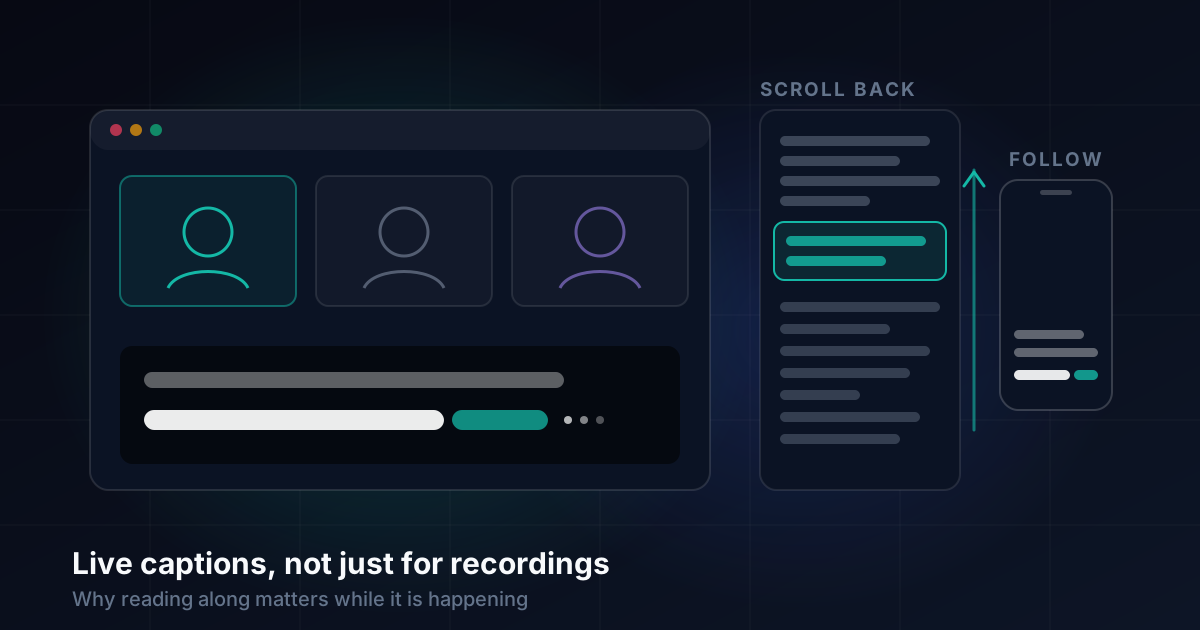
Scrolling back without interrupting. You missed a sentence. In a room, your options are to ask someone to repeat it, which halts everyone, or to let it go. With a live transcript you scroll up, read it, and scroll back down. Nobody else notices, which matters: plenty of people would rather stay confused than interrupt a meeting.
Catching up after joining late or stepping away. Someone joins ten minutes in, or leaves to answer the door. Instead of piecing it together from context, they can read what they missed in a minute or two.
Searching what was said. "Was that Thursday or Tuesday?" A search over the live transcript answers it while the meeting is still going, not tomorrow.
None of these are about hearing. They are about memory and attention, which everyone runs short of at some point in a long meeting.
The first thing we got wrong: text that will not sit still
ZumiScribe is our browser-based transcriber. It records or loads speech, writes a transcript with speaker labels, and has a large captions view for reading live. The most useful lessons from building that view were all about one problem: speech-to-text services change their minds.
A live transcriber does not send finished sentences. It sends its best guess so far, then revises it as more audio arrives. Some services resend the whole sentence again and again, and may rewrite earlier words or change who they think is speaking. Put that straight on screen and the words appear, vanish and jump. In a transcript you glance at, that is irritating. In large captions someone is reading word by word, it makes the text hard to read at all, because the line you are halfway through keeps changing under you.
Our first version of the large captions did exactly that: live text slid about and was rewritten after itself. Fixing it took a few things working together:
- Words are let out at an even pace. Whether the transcriber sends one word at a time or a long block at once, the captions release words steadily, so a burst from the service does not dump half a paragraph on the screen in one go.
- Unconfirmed words are in italics. The last few words, the ones the service may still change, are shown in italics and settle into normal text once they are confirmed. A "..." follows while more is coming. You can see at a glance which words are safe to trust.
- Words already on screen are not redrawn. That is what stops the flicker.
For one service that resends sentences repeatedly, the main transcript also shows only the words two messages in a row agree on. The cost is that live words appear slightly later; it is a setting, on by default.
The second thing: lines that move while you read them
Even with steady words, the layout can betray you. On the phone page, lines shifted as words arrived, so we left-aligned them like the scrolling text. Then the first line moved as the text grew, so the captions now start at the top and grow downwards.
The bigger change was to make captions roll up like TV subtitles. There are two lines (more if you turn on History). A line fills from the left and breaks to the next; when a third line starts, the first goes and the second moves up. The point is that a full line never moves while it is being read. Your eye can stay on a line until you have finished it.
There is also a Smooth option that slides the lines up with an animation instead of jumping.
And then there is Confirmed only, which leaves out the italic words altogether. Nothing on screen changes as you read; the words come a little later, and the "..." shows that more is on the way. For some readers, text that never changes is worth a small delay.
Making captions readable from where people actually sit
Captions are only useful if they are legible from wherever the reader is. In ZumiScribe the large captions view fills the window with the last few sentences in big, left-aligned type, with who is speaking. It is meant for putting a laptop next to a TV, or reading from across a room. A few details that came out of using it:
- Its own text size, separate from the transcript, from small to about 3.4 times the normal size. As the text grows, fewer sentences fit and the oldest drop away.
- The speaker's colour. Words are drawn in each speaker's colour, so a change of voice is easy to see without reading a name. It can be turned off.
- History, in smaller type above the live words. We originally built it from finished bubbles, which meant a line that rolled off the big text could be missing from the history until the whole bubble finished. It is now built from the words themselves, so nothing falls into that gap.
- Light for a white background, Full screen, and controls that fade after a few seconds without movement, so only the words are left.
Captions on your own screen, not the presenter's
A big caption screen at the front of a room only helps the people who can see it. Often the better answer is to let each person read on their own device.
ZumiScribe can share live captions to phones. The presenter presses Share, which shows a link and a QR code; people open it on their phones. They can choose Scroll, the whole conversation scrolling by itself, or Live captions, just what is being said now, with optional History. In Scroll mode a Latest button appears after scrolling back, which is exactly the "catch the missed sentence and return" behaviour from earlier. Someone who joins late gets the recent bubbles first. Each phone sets its own text size and light or dark mode.
Two design rules there matter for trust. Only text is sent, never audio. And a PIN can be required, which is added to the link and the QR code. Private notes, bookmarks and pictures are never sent to phones.
For video calls there is a third option. On a Mac, the ZumiScribe Local app has a Subtitles on screen window: a see-through caption window that sits over everything, including slides or a Teams or Zoom call. You can drag and resize it, change the text size and background, and lock it so clicks pass through to whatever is underneath. It can follow the session ZumiScribe is already sharing, or listen to another app's sound directly.
Search, bookmarks and translation while it is happening
The transcript itself is the other half of live captioning. While recording, the newest bubble stays in view unless you scroll away, and a Jump to latest button brings you back. Find (Ctrl or Cmd+F) highlights matches in the finished bubbles and shows how many there are, without changing the text. A bookmark (Alt+B on the newest bubble) flags a moment to come back to, which is quicker than trying to remember the time.
Captions can also be translated on the computer, using the browser's own translator in recent desktop Chrome. It works on whole sentences: a finished sentence is translated once and remembered, and the sentence still being spoken is translated when it stops changing for a moment. It is not yet available on the phone follow page or the subtitles window.
Limitations
Live captions are only as good as the speech service behind them. ZumiScribe's own documentation is plain about this: they are not a certified accessibility service. For an event where captions are a requirement, someone should watch the screen and correct names and terms as they go, and the microphone and network should be tested beforehand. A speaker phone or a room microphone gives lower accuracy than a headset, and a loud room makes it worse. Guest and conference Wi-Fi often stops phones reaching the presenter's computer.
And it is worth repeating that captions shared to phones go to everyone with the link. Tell people the captions are being shared, and treat the link like a meeting invitation.
What I would tell someone building the same thing
- Design for the reader, not the transcriber. A speech service's partial results are honest about its uncertainty, but showing that uncertainty as moving text makes captions harder to read. Pace the words, mark what is unconfirmed, and never redraw what is already there.
- A line should not move while someone is reading it. Left-align, grow downwards, roll up like TV subtitles. Most of our early fixes were variations on this one rule.
- Offer a slower, steadier option. Some readers will happily trade a second of delay for text that never changes.
- The transcript is part of the caption. Scroll-back, search and catching up after joining late are where much of the live value is.
- Put the text where the reader is: their phone, or a window over the call, not only the screen at the front.
- Be honest about accuracy. Captions that look confident and are wrong are worse than captions that say what they are.
Transcripts that know who said what
Live captions, speaker labels, pictures in context and summaries, in your browser. There is no ZumiScribe server: transcripts stay in your browser or your own folder, and you choose which transcriber hears the audio, including ones that run on your own computer.
Try ZumiScribe